
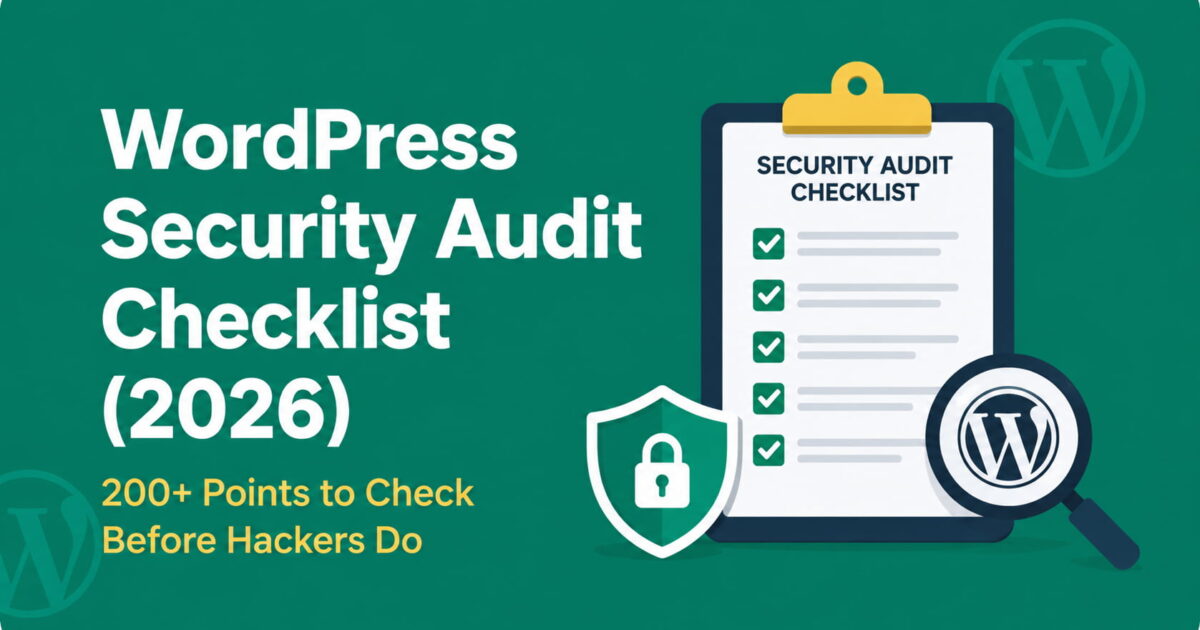
WordPress powers a huge share of the websites on the internet, which is exactly why it’s such a popular target. If you run a WordPress site — a blog, a store, a membership platform, a client’s business site — security isn’t a “set it and forget it” task. It’s a habit. And the backbone of that habit is a proper security audit.
This guide is built as a complete, practical WordPress security audit checklist with more than 200 individual checks across eleven areas: core files, users, plugins, themes, file permissions, malware, the database, the server, backups, and ongoing monitoring. Work through it section by section, or use it as a reference you return to every month.
1. Introduction
Why WordPress sites get hacked
WordPress itself is generally secure when kept up to date. Most successful attacks don’t exploit some mysterious flaw in WordPress core — they exploit the things layered on top of it:
- Outdated plugins and themes with known, publicly documented vulnerabilities
- Weak or reused passwords on admin accounts
- Nulled or pirated themes/plugins that ship with backdoors baked in
- Poor file permissions that let attackers write and execute code
- Unpatched hosting environments running old PHP versions or misconfigured servers
- Lack of monitoring, so a compromise sits undetected for weeks or months
Attackers rarely target you personally. Most WordPress hacks are automated — bots scanning millions of sites for known plugin vulnerabilities, weak logins, or exposed configuration files. If your site matches the pattern they’re looking for, it gets hit, regardless of how small or unimportant you think it is.
Why installing a security plugin isn’t enough
A security plugin (Wordfence, Sucuri, iThemes Security, and similar tools) is a valuable layer, not a complete solution. These plugins are excellent at:
- Blocking known malicious IP ranges and bad bots
- Scanning for common malware signatures
- Enforcing basic hardening rules (login limits, 2FA, firewalls)
But they can’t fix an outdated plugin you haven’t updated, a weak password an admin insists on reusing, incorrect file permissions set by your host, or a vulnerability in custom code your developer wrote three years ago. A security plugin is a smoke detector. An audit is walking through the house checking the wiring, the locks, and the exits.
What a security audit is
A WordPress security audit is a structured, comprehensive review of every layer of your site — core, plugins, themes, users, files, database, server, and processes — designed to find weaknesses before an attacker does, confirm nothing is already compromised, and produce a clear action plan to close the gaps you find.
Who should perform it
- Site owners and bloggers managing their own WordPress installs
- Agencies and freelance developers doing client maintenance
- In-house marketing or IT teams responsible for a company website
- E-commerce store owners running WooCommerce or similar, where a breach can mean stolen customer data and card details
You don’t need to be a security expert to work through this checklist — you need patience, access to your site, and a willingness to change things you find that are wrong.
How often to audit
| Site type | Recommended audit frequency |
|---|---|
| Personal blog, low traffic | Every 3 months |
| Business website | Monthly |
| E-commerce / WooCommerce | Monthly, plus after every major plugin update |
| Membership or SaaS-adjacent site | Monthly, with weekly spot checks |
| Any site after a suspected compromise | Immediately, full audit |
Beyond scheduled audits, always run a focused check after: installing a new plugin or theme, a major WordPress core update, adding a new admin user, or noticing anything unusual (slow performance, strange redirects, unexpected emails, search engine warnings).
2. What Is a WordPress Security Audit?
A full audit covers five overlapping goals:
Security assessment — establishing your current baseline. What version of WordPress, PHP, and each plugin/theme are you running? What does your user list look like? This is the fact-finding stage before you fix anything.
Vulnerability detection — actively looking for known weaknesses: plugins with disclosed CVEs, outdated software, exposed files, weak credentials, and misconfigurations that give attackers an opening.
Hardening — proactively tightening settings that reduce your attack surface even if no specific vulnerability is present yet: disabling the theme/plugin editor, restricting XML-RPC, enforcing strong file permissions, adding security headers.
Compliance — for many businesses, this also means meeting obligations under PCI-DSS (if you handle card data), GDPR or similar privacy regulations, or internal company security policy.
Risk reduction — the end goal of all of the above. You cannot eliminate risk entirely, but a good audit measurably reduces the probability and potential impact of a successful attack.
3. Before You Start
Never begin poking around a live production site without a safety net. Complete this pre-audit checklist first:
- Take a full backup — files and database, stored somewhere other than your live server.
- Set up a staging site — a clone of your live site where you can safely test changes, updates, and fixes without risking downtime.
- Confirm admin access — make sure you have a working WordPress admin login with full privileges before you start locking things down.
- Confirm hosting panel access — cPanel, Plesk, or your host’s custom dashboard. You’ll need this for file permissions, PHP version, and server-level settings.
- Confirm FTP/SFTP access — for direct file inspection and cleanup when malware or suspicious files are found.
- Confirm database access — via phpMyAdmin, Adminer, or a similar tool, since several checks require inspecting tables directly.
With that safety net in place, you’re ready to start the audit itself.
4. Part 1 — WordPress Core (15 Checks)
WordPress core is generally the most secure layer of your stack — the WordPress security team responds quickly to vulnerabilities — but it still needs regular verification.
- Confirm you’re on the latest stable version. Check Dashboard → Updates.
- Check for lingering development or nightly builds accidentally left installed on a production site.
- Check for beta versions that may have been installed for testing and never rolled back.
- Run core file integrity verification — compare your installed files against the official WordPress.org checksums to detect unauthorized modifications.
- Confirm debug mode is disabled (
WP_DEBUGshould befalsein production — a debug log left public can leak file paths, database structure, and error details to anyone who finds it). - Remove
readme.htmlfrom the root directory — it reveals your WordPress version to anyone who requests it. - Remove
license.txtfor the same reason; it’s not needed in production. - Verify the integrity of
wp-admin— no unexpected files, no modified core scripts. - Verify the integrity of
wp-includes— same check, this directory is a common target for hidden backdoors. - Run a core file checksum comparison using WP-CLI (
wp core verify-checksums) or a security plugin’s built-in scanner. - Confirm automatic background updates are enabled for minor/security releases, so critical patches apply even if you’re not actively managing the site that week.
- Check PHP compatibility — confirm your PHP version is supported by your current WordPress version and won’t be an obstacle to future core updates.
- Review update history — when was WordPress core last updated, and does that align with your maintenance schedule?
- Check file ownership on core files — they should be owned by your web server user, not writable by arbitrary system accounts.
- Confirm Recovery Mode is functioning — WordPress’s built-in fatal-error recovery mode should be able to notify you and let you access the dashboard even if a plugin or theme crashes the site.
5. Part 2 — User Security (20 Checks)
Compromised credentials are one of the most common entry points into a WordPress site. This section is about locking down every account that can touch your dashboard.
- Eliminate the username “admin.” If any account still uses this as a login name, rename it or create a new admin account and remove the old one.
- Audit for weak passwords across every user with elevated privileges, not just the primary admin.
- Confirm multi-factor authentication (MFA) is enabled for all administrator and editor accounts at minimum.
- Check login attempt limiting — is there a lockout after a set number of failed attempts?
- Review your password policy — minimum length, complexity requirements, and forced resets after a set period or after a suspected breach.
- Audit user roles — does every user actually need the role they’ve been assigned? Downgrade anyone with unnecessary Administrator or Editor access.
- Identify dormant accounts — users who haven’t logged in for 6+ months are prime candidates for removal or, at minimum, a forced password reset.
- Check for unnecessary guest or generic shared accounts.
- Review author accounts — confirm each one is a real, known person.
- Check for subscriber role abuse — unusually high volumes of subscriber sign-ups can indicate spam bots or a precursor to a privilege-escalation attack.
- Confirm session timeout settings are reasonable — long-lived sessions on shared or public computers are a risk.
- Review application passwords — WordPress’s REST API application passwords should only exist for integrations you actively use; revoke the rest.
- Check XML-RPC access — if you don’t use it (e.g., for the WordPress mobile app or specific integrations), disable it; it’s a common target for brute-force and DDoS amplification attacks.
- Confirm login alerts are configured — you should be notified of new or unusual logins.
- Confirm account lockout policies are active after repeated failed attempts, with a sensible cool-down period.
- Check that email verification is required for new account creation where relevant.
- Check for user enumeration exposure — can an attacker discover valid usernames simply by visiting
?author=1,?author=2, etc.? - Review security questions, if your setup uses them, for predictability.
- Confirm last-login tracking is enabled so you can spot accounts that are active when they shouldn’t be.
- Do a full administrator review — list every single admin account by name, confirm you personally recognize each one and know why they have access.
6. Part 3 — Plugin Security (30 Checks)
Plugins are, by a wide margin, the most common source of WordPress vulnerabilities. This is where an audit earns its keep.
- Remove deleted-but-not-deactivated plugin remnants — leftover files in
wp-content/pluginsthat no longer show in the dashboard. - Deactivate and delete inactive plugins. An inactive plugin’s files are still present and still exploitable even if it isn’t “running.”
- Identify abandoned plugins — check the WordPress.org plugin page for each installed plugin; anything not updated in 12+ months is a red flag.
- Validate premium plugin licenses — expired licenses often mean you’re missing security patches available only through licensed updates.
- Check each plugin’s vulnerability history using a database like WPScan’s vulnerability feed.
- Review plugin file permissions — plugin directories should not be world-writable.
- Check plugin reviews and support activity — a flood of recent one-star reviews citing hacks or malware is a serious warning sign.
- Look for unauthorized file modifications inside plugin folders — compare against a clean copy from WordPress.org.
- Identify unknown plugins — anything installed that no one on your team remembers adding.
- Confirm upload protection — plugins that accept file uploads (forms, galleries, importers) should restrict file types and disable PHP execution in their upload directories.
- Check for plugin conflicts that could be masking errors or creating unexpected behavior.
- Confirm auto-updates are enabled for plugins where you trust the vendor’s release quality, especially for security-critical plugins.
- Verify licensing compliance to ensure you’re not running nulled or cracked versions (see Part 4 for why this matters).
- Run database cleanup for orphaned plugin tables and options left behind by plugins you’ve since removed.
- Disable unused plugin features — many plugins ship with broad functionality enabled by default; turn off anything you don’t actually use.
Beyond the fifteen items above, a deeper plugin audit should also work through this extended set of 15 checks:
- Confirm each plugin’s declared “Tested up to” WordPress version is current.
- Check whether any plugin requests unusually broad permissions relative to its stated purpose.
- Search plugin code for hardcoded credentials or API keys that shouldn’t be there.
- Confirm plugins that handle payments are PCI-compliant and actively maintained.
- Check for duplicate plugins performing the same function (a common source of conflicts and bloat).
- Review plugin-created database tables for unexpected size growth.
- Confirm plugin settings pages aren’t publicly accessible without authentication.
- Check for plugins that create publicly accessible debug or log files.
- Review any plugin that adds custom REST API endpoints for proper authentication.
- Confirm form plugins have spam protection (CAPTCHA, honeypot, or similar) enabled.
- Check SEO and caching plugins for outdated sitemaps or cache files exposing stale content.
- Confirm backup plugins store backups outside the publicly accessible web root.
- Review any plugin offering “import from URL” or remote file fetching for SSRF risk.
- Check that page builder plugins don’t leave shortcode/debug output visible on the front end.
- Document every plugin’s purpose so future audits can quickly assess whether it’s still needed.
7. Part 4 — Theme Security (15 Checks)
- Identify your active theme and confirm it’s still receiving updates.
- Confirm you’re using a child theme for any customizations, so updates to the parent theme don’t wipe out your changes (and so you have a clear record of what’s custom vs. stock).
- Check theme update status against the official theme repository or vendor.
- Scan for nulled or pirated themes. This deserves emphasis: nulled themes downloaded from unofficial sources are one of the most common ways backdoors get installed on WordPress sites in the first place. If you’re running a nulled theme, replace it — full stop.
- Confirm the theme and plugin file editor is disabled in
wp-config.php(define('DISALLOW_FILE_EDIT', true);), so an attacker who gains dashboard access can’t edit PHP files directly through the admin UI. - Search for unknown or injected code inside theme files that doesn’t match the original theme source.
- Review
functions.phpline by line for anything unfamiliar — this file is a favorite hiding spot for malicious code because it’s automatically loaded on every page. - Check for header injections — unexpected
<script>tags, hidden links, or redirect code inheader.php. - Check for footer injections — same idea, in
footer.php; a very common location for spam link injections. - Audit external script references loaded by the theme — confirm every third-party script is one you recognize and trust.
- Search for hidden admin links or backdoor access points embedded in theme templates.
- Check theme file permissions match the standard secure baseline (more in Part 5).
- Remove deleted-but-orphaned theme files left behind after switching themes.
- Remove default WordPress themes (Twenty Twenty-Three, Twenty Twenty-Four, etc.) if you’re not using them — unused themes are still a potential attack surface and should either be kept fully updated or deleted.
- Confirm theme backups exist independently, so a bad update or a cleanup mistake doesn’t cost you your design work.
8. Part 5 — File Permission Audit (20 Checks)
Incorrect file permissions are one of the quieter but more dangerous issues an audit can catch — they can allow attackers to write and execute malicious files even after you’ve patched everything else.
Directories to check
wp-config.php.htaccesswp-contentwp-content/uploadswp-content/pluginswp-content/themes- Cache directories
- Log directories
Correct permission baseline
- Folders should generally be set to 755 — owner can read/write/execute, group and others can read/execute only.
- Files should generally be set to 644 — owner can read/write, group and others can read only.
wp-config.phpshould be tightened to 600 or 640 — this file contains your database credentials and secret keys, and should not be readable by other accounts on a shared server.- Never use 777 permissions anywhere — this makes a file or folder writable by literally anyone with any level of server access, and is one of the fastest ways to get compromised.
Additional checks
- Confirm correct ownership — files should be owned by your web server user (commonly
www-data,apache, or your hosting-specific user), not by an unrelated system account. - Use
chmodto correct any files or folders that deviate from the 644/755 baseline. - Use
chownto correct any files with incorrect ownership. - Check the uploads directory specifically for PHP execution — it should never be able to execute PHP files, since this is the classic pathway for uploaded-shell attacks.
- Check cache directories for the same PHP-execution restriction.
- Check log directories aren’t publicly readable via direct URL.
- Confirm
.htaccess(or nginx equivalent) blocks direct access to sensitive files likewp-config.php,.git,readme.html, andxmlrpc.phpif unused. - Check for world-writable files anywhere in the install using a recursive permission scan.
- Re-run the full permission audit after every migration or restore, since backup/restore tools frequently reset permissions incorrectly.
9. Part 6 — Malware Audit (30 Checks)
This is the deep-inspection phase — actively hunting for signs your site has already been compromised.
Suspicious PHP functions to search for
Malware frequently hides behind obfuscated or rarely-legitimate PHP functions. Search your codebase for:
eval(base64_decode(gzinflate(assert(shell_exec(exec(passthru(system(preg_replace(specifically with the/emodifier, which allows code execution — a serious red flag)str_rot13create_function
Important context: finding one of these functions isn’t automatically proof of malware — some legitimate plugins use base64_decode for licensing checks, for example. The red flag is these functions appearing in unexpected files (theme templates, uploads folders, random root-level files) or wrapped in heavily obfuscated, unreadable code.
Beyond function searches, check for:
- Hidden iframes embedded in pages, often invisible (1×1 pixel or
display:none) and used to serve malware or ads to visitors. - Spam links injected into your content or footer, often invisible via CSS, aimed at boosting an attacker’s SEO.
- Cryptocurrency miners running client-side JavaScript that hijacks visitor CPU/browser resources.
- Unexpected redirects — especially conditional redirects that only trigger for search engine bots or mobile visitors (a classic cloaking technique).
- Backdoors — small, innocuous-looking PHP files that grant remote code execution, often named to blend in (e.g.,
wp-cache.php,class-wp-includes.php) in locations they don’t belong. - Hidden file uploads in the uploads directory that aren’t images, documents, or media — particularly
.php,.phtml, or double-extension files likeimage.jpg.php. - Fake plugins — folders in
wp-content/pluginsthat mimic legitimate plugin names but contain only malicious code. - Fake themes — same pattern within
wp-content/themes. - Hidden admin users — check the full user list against your known team, not just the visible “Administrators” filter (some malware creates users and hides them from standard views).
- Cron-based malware — malicious code scheduled to run via WP-Cron or system cron, often used to re-infect a site after cleanup.
Extended malware-hunting checklist (remaining 9 checks)
- Compare current file timestamps against your last known-clean deployment; unexplained recent modifications across many files often indicate a mass infection.
- Scan for
.htaccessfiles in subdirectories that shouldn’t have one, often used to hide malicious redirects from admins. - Check Google Search Console and Google Safe Browsing status for flags indicating your site is already serving malware to visitors.
- Search for unfamiliar outbound connections in server logs (calls to unknown external domains).
- Check for unexpected changes to your site’s
robots.txtorsitemap.xml. - Look for newly created files with unusual timestamps (e.g., set in the future, or matching known attack windows).
- Run a full scan with at least one reputable malware scanner (Wordfence, Sucuri SiteCheck, MalCare, or similar) and cross-reference results.
- Check for unauthorized SEO spam pages generated under your domain (often in a subdirectory attackers create specifically for spam content).
- If anything from this section triggers a hit, isolate the site (take it offline or into maintenance mode) before continuing the audit, to prevent further damage while you investigate.
10. Part 7 — Database Audit (20 Checks)
- Check for unknown database users with access beyond what your WordPress install needs.
- Scan
wp_optionsfor spam options — malware frequently stores its payload or configuration in this table under innocuous-looking option names. - Review
wp_optionsautoload data — bloated autoloaded options slow every page load and are worth cleaning regardless of security concerns. - Identify unknown tables in your database that don’t correspond to WordPress core or any installed plugin.
- Confirm your table prefix isn’t the default
wp_where practical — this is a minor hardening step, not a primary defense, but it does block some unsophisticated automated attacks. - Review scheduled tasks stored in the database (WP-Cron events) for anything unfamiliar or suspicious.
- Check active sessions stored in the database for logins that don’t match your known user activity.
- Verify admin emails on file are correct and haven’t been silently changed by an attacker (a common tactic to intercept password reset emails).
- Monitor database size over time — a sudden, unexplained jump can indicate spam content injection or a malware payload.
- Run cleanup on post revisions — not a security risk by itself, but excessive revisions make it harder to spot anomalies and slow down your backups.
- Identify orphaned tables left behind by uninstalled plugins.
Extended database checks
- Confirm the database user WordPress connects with has only the privileges it actually needs (avoid using a root/superuser account for the WordPress connection).
- Check for SQL injection artifacts in table content — unusual strings like
UNION SELECTor1=1appearing in post content or comment fields. - Review the
wp_userstable directly for hidden accounts not visible through the standard admin filters. - Check
wp_usermetafor unexpected capability grants (a technique used to quietly elevate a low-privilege account to admin-level access). - Confirm database backups are encrypted at rest if they contain sensitive customer data.
- Review comment tables for spam or injected script content.
- Check for unexpected changes to site URL values (
siteurl,home) inwp_options, a common hijack technique. - Confirm database character set and collation are consistent (inconsistencies can sometimes be exploited or indicate a botched migration).
- Document your database structure baseline so future audits can quickly diff against it.
11. Part 8 — Server Security (25 Checks)
WordPress security doesn’t stop at the application layer — the server underneath matters just as much.
- Check your PHP version — run a currently supported version; older PHP versions stop receiving security patches.
- Review disabled PHP functions — your host should disable genuinely dangerous functions (like
exec,shell_exec) at the server level unless you specifically need them. - Confirm HTTPS is enforced site-wide, with no mixed content.
- Confirm HTTP/2 support for performance and modern TLS handling.
- Confirm HTTP/3 support where your host offers it.
- Check your SSL grade using a tool like SSL Labs — aim for an A or A+ rating.
- Confirm HSTS (HTTP Strict Transport Security) is configured to prevent downgrade attacks.
- Set a Content Security Policy (CSP) header to restrict which sources can load scripts, styles, and other resources.
- Set the
X-Frame-Optionsheader to prevent clickjacking via iframe embedding. - Set a Referrer Policy header to control what referrer information is sent to other sites.
- Set a Permissions Policy header to restrict browser feature access (camera, microphone, geolocation, etc.) where not needed.
- Review open ports on your server — anything not actively in use should be closed.
- Review SSH security — key-based authentication instead of passwords, non-default port where practical, and root login disabled.
- Confirm plain FTP is disabled — it transmits credentials in plain text.
- Confirm SFTP is used instead for secure file transfer.
- Confirm a firewall is active at the server or network level.
- Confirm ModSecurity (or equivalent) is running with an up-to-date rule set.
- Confirm a Web Application Firewall (WAF) is in place, whether server-level, plugin-based, or via a service like Cloudflare.
- Confirm rate limiting is active to blunt brute-force and DDoS attempts.
- Recheck file ownership at the server level, consistent with Part 5.
- Confirm server-level backups exist independently of any WordPress plugin backup.
- Review server logs for repeated suspicious requests, scanning patterns, or known attack signatures.
- Review cron jobs configured at the system level (outside WordPress) for anything unauthorized.
- Check memory limits are appropriately set — too low causes instability, but understand what’s consuming memory if limits are unusually high.
- Review PHP error logs for repeated errors that might indicate probing or exploitation attempts, and confirm these logs aren’t publicly accessible.
12. Part 9 — Backup Audit (10 Checks)
A security audit is incomplete without confirming your recovery plan actually works.
- Confirm daily backups are running for active, frequently updated sites.
- Confirm weekly backups at minimum for lower-activity sites.
- Confirm monthly backups are retained as a longer-term archive point.
- Confirm off-site storage — backups stored only on the same server as your live site will be lost (or compromised) along with everything else in a serious incident.
- Test restore functionality — an untested backup is a hope, not a plan. Actually restore a backup to a staging environment periodically.
- Confirm backup encryption if backups contain sensitive customer or business data.
- Define a retention policy — how many backup generations do you keep, and for how long?
- Confirm database backups are included, not just files.
- Confirm file backups cover uploads, themes, plugins, and any custom code — not just the database.
- Document a recovery plan — who does what, in what order, and how quickly, if you need to restore from backup after an incident.
13. Part 10 — Monitoring (15 Checks)
Ongoing monitoring is what turns a one-time audit into a continuous security posture.
- File integrity monitoring — alerts when core, plugin, or theme files change unexpectedly.
- Login alerts — notification on every admin-level login, especially from new locations or devices.
- Malware scanning — scheduled, automated scans, not just manual ones during audits.
- Uptime monitoring — immediate alerts if your site goes down, which can indicate an attack or a resource-exhaustion issue.
- DNS monitoring — alerts on unauthorized DNS record changes, which can redirect your traffic or email.
- SSL expiry alerts — an expired certificate is both a security and trust issue.
- Email notifications for key security events, routed somewhere you’ll actually see them.
- Resource monitoring — CPU, memory, and disk usage trends that might indicate cryptomining malware or a DDoS attempt.
- Plugin update monitoring — alerts when updates are available, especially security releases.
- Core update monitoring — same, for WordPress itself.
- Theme update monitoring — same, for your active and any installed themes.
- Failed login monitoring — trends over time, not just individual attempts.
- User creation alerts — immediate notification any time a new user account is created.
- Cron monitoring — confirm scheduled tasks are running as expected and not being abused.
- Regular log review — set a recurring calendar reminder; logs that are collected but never read provide no protection.
14. Part 11 — Performance vs. Security: Common Myths
It’s worth directly addressing a few misconceptions that come up constantly.
Does caching affect security? Caching itself is largely neutral for security, but it can mask problems — if malware injects content into a page, an aggressive cache can keep serving the infected version even after you’ve cleaned the source files, until the cache is cleared.
Does a CDN improve security? A CDN can meaningfully improve security by absorbing DDoS traffic, hiding your origin server IP, and often bundling basic WAF functionality. But a CDN is not a substitute for patching plugins or hardening your WordPress install — it protects the network layer, not the application layer.
Is Cloudflare enough? Cloudflare (even the free tier) is a genuinely useful layer — DNS-level protection, basic firewall rules, and SSL. But it doesn’t scan your files for malware, doesn’t fix outdated plugins, and doesn’t stop an attacker who already has valid login credentials. Treat it as one layer among several, not a complete security plan.
Is a security plugin enough? As covered in the introduction — no. It’s a strong layer, but it can’t replace the manual review, hardening, and process work this checklist covers.
Should you hide the login URL? Changing /wp-admin or /wp-login.php to a custom URL (often called “security through obscurity”) does reduce automated bot noise hitting your login form, which has real value in reducing server load and log clutter. But it should never be your primary defense — pair it with strong passwords, MFA, and login-attempt limiting, since a determined attacker can still find the real login URL.
15. Part 12 — Monthly Security Audit Routine
Security isn’t a once-a-year event. Here’s a practical cadence you can actually sustain:
Every day
- Confirm the site is online and responding normally (automated uptime monitoring handles this).
- Glance at any security or login alert notifications that came in overnight.
Every week
- Review failed login attempts and any flagged malware scan results.
- Confirm scheduled backups completed successfully.
- Check for pending plugin/theme/core updates and apply security-critical ones promptly.
Every month
- Run through Parts 1–7 of this checklist (core, users, plugins, themes, file permissions, malware, database).
- Review the full admin user list.
- Test a backup restore on staging.
Every quarter
- Run the full 200+ point audit, including server-level checks (Part 8).
- Review your password policy and MFA enforcement across all users.
- Reassess whether every installed plugin is still needed.
Every year
- Full penetration test or third-party security review, if budget allows.
- Reassess your hosting provider’s security track record and support responsiveness.
- Review and update your incident response plan.