
You open your website and something is wrong. Google is showing a red warning screen. Visitors say they’re being redirected to strange pages. Your homepage looks different. Or you simply can’t log in to wp-admin anymore.
Your first instinct might be to delete everything and reinstall WordPress from scratch.
Don’t.
That instinct — while understandable — can destroy the evidence that shows how the attacker got in, wipe out content and customer data you actually need, and leave the original vulnerability wide open for the exact same attack to happen again next week.
This guide walks through a systematic recovery process built around one principle: preserve evidence and data first, then clean and recover the site methodically. By the end, you’ll know how to confirm you’ve actually been hacked, protect your data before touching anything, find and close the entry point, clean infected files and the database, recover your accounts, and get your rankings and traffic back — without losing the site you built.
Quick Emergency Recovery Checklist
If you’re in the middle of an active incident right now, start here. The exact order can shift depending on your situation — but nothing on this list should be skipped.
- Don’t delete the entire website
- Don’t overwrite the infected site immediately
- Take a forensic backup/snapshot of the site in its current (infected) state
- Contact your hosting provider
- Secure your hosting account (change password, check for unfamiliar users)
- Change compromised passwords — but see the warning below about doing this from a clean device
- Revoke active WordPress sessions
- Preserve server, access, and error logs before they rotate out
- Identify suspicious administrator accounts
- Scan files for malware and backdoors
- Scan the database for injected content
- Identify the initial attack vector — not just the symptom
- Remove the malware completely
- Patch the actual vulnerability that let the attacker in
- Restore only components you’ve verified are clean
- Rotate every secret and credential connected to the site
- Monitor the site closely for weeks after cleanup
30 Warning Signs Your WordPress Website May Be Hacked
Some compromises are obvious. Many are quiet for weeks before you notice — the attacker often wants your site to keep functioning normally so it stays useful to them.
| Warning Sign | What It May Indicate |
|---|---|
| Unexpected redirects for visitors | Injected redirect malware, often only triggered for search-engine bots or mobile users |
| Strange popups or ads | Injected JavaScript or a malicious ad-injection script |
| Unknown administrator accounts | Full account takeover — attacker created persistent access |
| Plugins you didn’t install | Backdoor disguised as a legitimate plugin |
| Modified theme files | Direct file-level compromise, often via a vulnerable upload path |
| Unfamiliar PHP files in uploads | Web shell or backdoor dropped through a file upload vulnerability |
| Altered homepage content | Defacement — a visible sign of a deeper compromise |
| Spam pages appearing on your domain | SEO spam injection, often in a hidden or randomly-named directory |
| Foreign-language keyword spam in search results | Classic SEO spam injection technique targeting search visibility, not your visitors |
| Pharmaceutical or casino spam in search results | Common monetized spam campaigns injected into indexed pages |
| Hidden links in page source | Link injection used to manipulate another site’s search rankings |
| Google Search Console security warning | Google has detected malware or spam associated with your site |
| Browser “dangerous site” warnings | Your site is flagged in Safe Browsing or a similar blocklist |
| Sudden traffic spikes or drops | Could indicate spam pages being indexed, or a redirect diverting real visitors |
| Unexpected server load/CPU usage | Cryptocurrency mining, spam-sending, or brute-force scripts running on your server |
| Unknown cron jobs | Scheduled persistence mechanism re-injecting malware after cleanup |
| Suspicious JavaScript in page source | Injected script performing redirects, ad fraud, or credential theft |
| Your domain sending spam email | Compromised SMTP configuration or a mail-sending script planted on the server |
| Your password no longer works | Account takeover — the attacker changed it |
| Security plugin disabled or missing | Attacker disabled it to avoid detection |
| Modified .htaccess file | Server-level redirect or access-control tampering |
| Suspicious rows in the database | Injected spam content or malicious scripts stored directly in post/option data |
| Unknown API keys in settings | Attacker-configured integration used for data exfiltration or persistence |
| Unusual login activity/times | Credential stuffing or a successful unauthorized login |
| SEO titles/meta descriptions changed | Spam content injected directly into indexed metadata |
| Strange URLs in your sitemap | Spam pages being generated and submitted to search engines automatically |
| Redirects that only happen on mobile | Cloaking technique used to hide the attack from desktop admins while targeting real visitors |
| Spam pages appearing in Google’s index | Confirms spam content has already been crawled and indexed |
| Hosting account suspended | Your host detected malicious activity originating from your account |
What to Do in the First 30 Minutes
Speed matters, but precision matters more. Moving too fast in the wrong direction — like restoring a random old backup — can make recovery harder, not easier.
0–5 minutes: Contain, don’t destroy
Confirm what you’re actually seeing. Don’t touch files yet. If the site is actively harming visitors (serving malware downloads, phishing pages), consider putting it in maintenance mode or temporarily taking it offline at the hosting level — not deleting anything.
5–15 minutes: Preserve evidence
Take a full snapshot of the site exactly as it is right now — files and database — even though it’s infected. This becomes your forensic copy. You’ll investigate it separately from the live site.
15–30 minutes: Secure access from a clean device
Change your hosting and WordPress passwords — but do this from a device you’re confident isn’t compromised. If the breach may have involved a keylogger or malware on your own computer, changing passwords from that same device just hands the new password to the attacker too.
First hour: Contact your host, preserve logs
Reach out to your hosting provider — many have security teams who can see server-level activity you can’t, and they may already recognize the specific compromise pattern. Ask them to preserve access/error logs before automatic rotation deletes them.
First 24 hours: Investigate before you clean
Resist the urge to start deleting suspicious-looking files immediately. Spend this window identifying the entry point and scope of the compromise. Cleaning without understanding what happened is how sites get reinfected within days.
Why You Should Back Up a Hacked Site Before Cleaning It
This feels counterintuitive — why back up something infected? Because you need a reference point. If you clean too aggressively and break something, or discover later you missed a piece of the malware, that snapshot lets you go back and check exactly what was there.
Back up everything relevant, not just the parts that look obviously infected:
- Full database export
- Entire wp-content directory (themes, plugins, uploads)
- wp-config.php
- .htaccess (or nginx configuration, if you have server access)
- Server access logs and error logs
- A hosting-level snapshot, if your host offers one
Four different kinds of backup, and why the distinction matters
| Backup Type | Purpose | Safe to Restore Directly? |
|---|---|---|
| Clean backup | A verified-good copy from before the compromise | Yes, once you’ve confirmed the vulnerability that led to the hack is also fixed |
| Suspected infected backup | A recent backup that may already contain the malware | No — restoring it can bring the infection right back |
| Forensic copy | The site exactly as found, for investigation | No — this is for analysis, not restoration |
| Disaster-recovery backup | Your ongoing off-site backup strategy for the future | Depends entirely on when it was taken relative to the compromise |
A backup existing is not the same as a backup being safe. If your automated backups have been running since before the hack, several of your most recent ones may already contain the exact malware you’re trying to remove. Restoring one blindly can put you right back where you started.
How to Recover WordPress Without Losing Posts, Pages, Images, and Users
Most of what matters to you as a site owner lives in one of two places, and they need to be handled differently during recovery.
| Component | Where It Lives | Can It Be Replaced? | Recovery Considerations |
|---|---|---|---|
| Posts, pages, comments | Database (wp_posts) | No — must be preserved and cleaned in place | Check for injected spam content mixed into legitimate posts |
| Users | Database (wp_users, wp_usermeta) | Legitimate users: no. Rogue accounts: remove them | Audit every account before assuming it’s legitimate |
| Settings/options | Database (wp_options) | No — but scan carefully, this table is a common injection target | Check for malicious entries in autoloaded options |
| WooCommerce orders/customers | Database (custom tables + postmeta) | No — critical business data | Treat with extra care; may involve privacy obligations |
| Media/images | Filesystem (wp-content/uploads) | No — but scan thoroughly for hidden malicious files | Check for PHP files disguised among image files |
| Themes | Filesystem (wp-content/themes) | Yes, if not custom — reinstall from official source | Custom themes need manual review, not blind replacement |
| Plugins | Filesystem (wp-content/plugins) | Yes — always reinstall from official sources | Never trust an existing plugin folder; replace entirely |
| WordPress core | Filesystem (wp-admin, wp-includes, root files) | Yes — always replace with fresh official files | Do not keep old core files “to be safe” |
| wp-config.php | Filesystem (root) | Rebuild carefully, don’t blindly reuse | Contains credentials and secrets — rotate everything referenced in it |
The general rule: anything that’s just “software” (core, plugins, themes from official sources) should be replaced entirely, not cleaned. Anything that’s genuinely your data (database content, custom code, uploads) needs to be preserved and carefully inspected instead.
Find Out How the Hacker Got In
Removing malware without identifying the entry point is the single most common reason WordPress sites get reinfected. If you don’t close the door, cleaning the mess behind it doesn’t stop the next visit.
The most common entry points, in roughly descending order of frequency:
- Vulnerable plugin — by far the most common cause of WordPress compromises
- Vulnerable theme — especially premium themes that haven’t been updated
- Outdated WordPress core — missing security patches from newer releases
- Stolen administrator credentials — often from an unrelated data breach where the password was reused
- Brute-force attack — automated password guessing against an unprotected login form
- Credential stuffing — automated attempts using real leaked email/password pairs
- Compromised hosting account — direct file access without touching WordPress at all
- Vulnerable custom code — a custom plugin or theme built without proper input validation
- Insecure file upload feature — a form or plugin that doesn’t validate file type by content
- SQL injection — unsanitized input reaching a raw database query
- XSS leading to session theft — a stored script that hijacked an administrator’s session
- Privilege escalation — a lower-level account exploiting a flaw to gain admin capabilities
- Exposed API credentials — keys committed to a public repository or left in an accessible file
- Leaked SSH/SFTP credentials — direct server access via a compromised credential
- Compromised third-party service — a connected integration or supply-chain compromise
- Abandoned plugin — known vulnerability that was never patched because development stopped
- Nulled/pirated plugin or theme — a backdoor installed intentionally, from day one
A typical attack chain
Vulnerable Plugin
   ↓
Exploit (automated scanner finds and triggers the flaw)
   ↓
Initial Access (file write or authentication bypass)
   ↓
Backdoor (web shell dropped for persistent remote access)
   ↓
Administrator / Server Access (privilege escalation or credential harvest)
   ↓
Malicious Code (injected into files, database, or both)
   ↓
SEO Spam / Redirect / Data Theft (the actual monetization)
   ↓
Persistence (cron jobs, rogue admin accounts, hidden backdoors — so cleanup doesn't stick)
Work backward through your logs and file timestamps to find where this chain started. The first modified file, the first unfamiliar login, or the first unusual request in your access logs is usually your answer.
Check WordPress Users
Account takeover and rogue admin creation are common enough that user auditing deserves its own step, separate from file and database cleanup.
Go through every user with elevated capabilities and confirm you recognize them and their access level is appropriate. Pay attention to:
- Administrator accounts you don’t remember creating
- Usernames that look auto-generated or slightly off from your naming convention
- Recently created accounts with no legitimate activity history
- Existing legitimate accounts with recently changed email addresses (a common takeover technique — change the email, then reset the password)
- Active sessions that don’t match your team’s known devices/locations
- Application passwords you don’t recognize
- Any OAuth/SSO connections you didn’t authorize
To pull a quick list of every administrator-level user for review, this WP-CLI command is faster and safer than scrolling through the dashboard on a possibly-compromised admin session:
wp user list --role=administrator --fields=ID,user_login,user_email,user_registered
Remove any account you can’t positively confirm is legitimate, then force a password reset and session revocation for everyone who remains.
Check WordPress Files
You’re looking for anything that shouldn’t be there, and anything that’s been modified when it shouldn’t have changed. Focus on:
wp-content/plugins— compare against what you actually installedwp-content/themes— check for unfamiliar theme folders or modified files in your active themewp-content/uploads— this directory should never contain PHP fileswp-config.php— check modification date and contents.htaccess— check for injected redirect ruleswp-includesandwp-admin— these should exactly match official WordPress core files
Common red flags inside PHP files include obfuscated code, unexpected use of eval(), base64_decode(), or gzinflate() to hide payloads, preg_replace() used with the (long-deprecated and dangerous) /e modifier, code that fetches and executes content from a remote URL, suspiciously named files sitting alongside legitimate ones, PHP files anywhere inside the uploads directory, unfamiliar admin-area scripts, and injected <script> tags or hidden iframes in theme files.
Important context: not every use of base64_decode() or eval() is malware. Some legitimate plugins use these functions for entirely normal reasons — caching, licensing checks, or data compression. The red flag is the combination: obfuscated code you can’t explain, in a file that shouldn’t have it, doing something you didn’t authorize. When in doubt, compare the file against the plugin’s original source rather than judging a single function call in isolation.
A fast way to compare your core files against the official versions is WordPress’s built-in checksum verification:
wp core verify-checksums
wp plugin verify-checksums --all
Any file flagged as modified deserves a closer look — it doesn’t automatically mean malware, but unexplained modifications to core files are one of the strongest indicators of compromise you’ll find.
How to Find Malware Inside the WordPress Database
File-based cleanup alone misses a huge category of infections. Malicious content frequently lives directly in the database, and a site can look completely clean at the file level while still serving spam or redirects from injected database content.
Check these tables specifically:
- wp_options — especially autoloaded options; a common place to hide malicious scripts or redirect URLs, including the
siteurlandhomevalues themselves - wp_posts — spam content injected into existing posts/pages, or entirely new hidden spam pages
- wp_postmeta — malicious scripts hidden in metadata fields
- wp_users / wp_usermeta — rogue accounts and capability manipulation
- WooCommerce tables — order and customer data integrity
- Custom plugin tables — anywhere a plugin stores its own data
Watch specifically for injected JavaScript or iframe tags inside post content, spam links hidden with CSS (like display:none) inside legitimate-looking posts, a siteurl or home option pointing somewhere unexpected, options with names that mimic legitimate plugin settings but contain executable code, and unfamiliar scheduled tasks stored in the wp_options cron array.
Before running any cleanup query, export a full database backup. Careless SQL — especially broad UPDATE or DELETE statements without a precise WHERE clause — can silently damage legitimate content. Search first, verify what you’re looking at, and only then remove it, ideally starting with the narrowest possible match.
Common Types of WordPress Malware
| Malware Type | What It Does | Typically Found | Detection Approach |
|---|---|---|---|
| PHP backdoor / web shell | Gives the attacker ongoing remote command execution | Uploads directory, plugin folders, sometimes disguised as a core file | File integrity scan, checksum comparison, manual code review |
| SEO spam injection | Inserts spam keywords/links to manipulate search rankings | wp_posts, wp_options, theme footer files | Search database content, check indexed pages via Search Console |
| Redirect malware | Sends visitors (often only bots or mobile users) to another site | .htaccess, theme header files, wp_options | Test from multiple devices/user agents, check .htaccess rules |
| Malicious JavaScript injection | Runs code in visitors’ browsers — ads, redirects, credential theft | Theme files, wp_posts content, injected script tags | View page source, check for unfamiliar external script sources |
| Phishing pages | Hosts fake login pages to harvest credentials from other services | Hidden directories, often unlinked from the visible site | Server file listing, Search Console coverage report |
| Admin account takeover | Persistent, privileged access disguised as a normal account | wp_users | Manual user audit against known team members |
| Malicious cron jobs | Re-injects malware or maintains persistence automatically | wp_options cron array, server-level crontab | wp cron event list, server crontab review |
| Database injection | Stores malicious scripts or content directly in the database | wp_options, wp_postmeta, custom tables | Targeted database search for script tags and suspicious patterns |
| Credit-card skimmer | Captures payment details entered on checkout forms | WooCommerce checkout templates, injected JavaScript | Review checkout page source, compare against gateway documentation |
| Cryptocurrency miner | Uses server CPU resources for mining, degrading performance | Server-level processes, sometimes plugin-disguised | Unusual CPU load, hosting provider resource alerts |
Clean WordPress Safely: The Step-by-Step Workflow
- Preserve an infected copy — your forensic reference point, kept separate from the live site
- Secure accounts — hosting, WordPress, database, all rotated from a clean device
- Identify the entry point — don’t skip this to save time; it determines everything else
- Replace WordPress core — download fresh files directly from WordPress.org, don’t reuse existing core files
- Replace compromised plugins — reinstall from official sources rather than trying to “clean” existing plugin files
- Replace compromised themes — same principle; for custom themes, review code manually instead
- Inspect uploads — this directory should never contain executable PHP; anything that isn’t a legitimate media file needs scrutiny
- Clean the database — remove injected content, verify options tables, check for rogue scheduled tasks
- Remove malicious users — anything you can’t positively verify as legitimate
- Remove persistence mechanisms — rogue cron jobs, scheduled tasks, hidden backdoors that would re-infect a freshly cleaned site
- Rotate secrets — database credentials, authentication keys/salts, API keys, application passwords
- Update everything — core, plugins, themes, PHP version — to close the vulnerability that was exploited
- Re-scan — a full malware and file-integrity scan after cleanup, not just before
- Monitor — closely, for at least several weeks, since a missed piece of persistence can quietly reinfect a “clean” site
Replacing core, plugin, and theme files entirely — rather than manually editing them line by line — is usually the safer path. It’s extremely difficult to be certain you’ve found every single modification inside a large codebase by manual review alone, and a fresh official copy guarantees the code matches what it’s supposed to.
How to Reinstall WordPress Without Losing Your Content
“Reinstalling WordPress” sounds like it might wipe everything — it doesn’t have to, if you understand what actually gets replaced versus what stays.
| Component | What Happens on Reinstall |
|---|---|
| Database (posts, pages, users, settings) | Untouched by a core reinstall — your content lives here, separately from the files being replaced |
| wp-content (themes, plugins, uploads) | Not touched by the core reinstall process itself — but you should still inspect and individually replace plugins/themes |
| Uploads | Preserved — but scan carefully, since this is a common place for hidden malicious files |
| Themes | Not automatically replaced — reinstall official ones manually, review custom ones by hand |
| Plugins | Not automatically replaced — reinstall each from the official source individually |
| wp-config.php | Preserved by default — but this is exactly where you should be rotating credentials, not blindly keeping it as-is |
| Custom code (child themes, custom plugins) | Preserved — but requires manual security review since it wasn’t written by a vetted third party |
The critical thing to understand: reinstalling WordPress core does not automatically remove malware. If malicious files remain in wp-content, or malicious content remains in the database, a core reinstall does nothing to touch them — the site can look “reinstalled” and still be fully compromised. Core replacement is one step in the process, not the whole process.
Cleaning wp-content/uploads
The uploads directory gets special attention for one simple reason: it should never contain executable PHP files, and yet it’s one of the most common places attackers drop them, because many sites don’t expect to check there.
Look for PHP files mixed in among your images and media, files with double extensions designed to slip past naive checks (like photo.jpg.php), JavaScript files that don’t correspond to anything you installed, hidden files (starting with a dot) that don’t belong there, and files with modification timestamps that don’t match your actual upload history.
Even legitimate-looking image files are worth checking — some malware is embedded inside a valid image file’s metadata and combined with a separate script that reads and executes it. Don’t delete files indiscriminately based on appearance alone; when something looks suspicious but you’re not certain, isolate it (move it outside the web root) rather than permanently deleting it, so you retain the option to investigate further if something breaks.
Securing wp-config.php After a Hack
This file holds your database credentials and authentication secrets — treat it as compromised by default until proven otherwise, since it’s one of the highest-value targets on the entire server.
After any confirmed or suspected compromise:
- Change your database password and update it here
- Regenerate all authentication keys and salts (WordPress.org provides a secret-key generator for this)
- Set
DISALLOW_FILE_EDITtotrueto prevent file editing from the dashboard - Set
WP_DEBUG_DISPLAYtofalsein production so errors don’t leak file paths to visitors - Verify file permissions aren’t overly permissive
- Where your hosting supports it, move credentials to environment variables instead of hardcoding them in the file
Rotating authentication keys and salts immediately invalidates every existing session — including the attacker’s, if they had one — which makes this one of the highest-value single actions in the entire recovery process.
Cleaning .htaccess and Server Configuration
Attackers frequently use server-level configuration for persistence and redirects, precisely because site owners rarely think to check there. This applies to .htaccess on Apache, equivalent server blocks on nginx, PHP configuration files, and cron entries at the server level (separate from WordPress’s own cron system).
Watch for redirect rules you didn’t add, rewrite rules pointing to unfamiliar domains, and directives that hide certain files or directories from directory listings for suspicious reasons. Preserve a copy of the current configuration before modifying anything — if a legitimate plugin or your hosting environment depends on a specific rule, removing it blindly can break the site in a different way.
WordPress Malware Scanners: What They Catch and What They Miss
| Method | Strength | Limitation | Best Use |
|---|---|---|---|
| Plugin-based scanner | Easy to run, integrated with the dashboard, good for ongoing monitoring | Runs inside the potentially-compromised environment; limited server-level visibility | Regular scheduled scanning, early warning |
| Server-level scanner | Sees the full filesystem, not limited by PHP execution context | Requires hosting/server access; more technical to configure | Deeper investigation during active incident response |
| Remote/external scanner | Sees the site the way a visitor or Google does | Can’t see server-side code or database content directly | Confirming visible symptoms like redirects or defacement |
| File integrity monitoring | Detects unauthorized changes to core/plugin/theme files quickly | Only useful if a clean baseline was established beforehand | Ongoing prevention, not initial incident discovery |
| Hosting-provided malware scanning | Often has visibility other tools don’t, integrated with the host’s own security team | Coverage and quality vary significantly by host | First call during an active incident |
No scanner catches everything. Automated tools are pattern- and signature-based, which means novel or custom-written malware can slip past them. Treat scanning as one input into your investigation, not a final verdict — a clean scan result doesn’t mean the site is definitely clean, especially with a sophisticated or targeted compromise.
Security Plugin vs. Manual Cleanup vs. Professional Help
| Approach | When It Makes Sense |
|---|---|
| Security plugin cleanup | Simple, well-understood infections on sites where you’re comfortable following technical steps |
| Manual investigation | Developers/agencies comfortable reading PHP and SQL directly, or cases the automated tools clearly missed |
| Professional malware removal service | Business-critical sites, WooCommerce stores with customer data, repeated reinfection, or when you simply lack the time/expertise to do it safely |
| Hosting provider assistance | Always worth contacting early — many hosts offer free guidance or paid cleanup, and they have visibility you don’t |
There’s no universally “right” choice here — it depends on the sensitivity of the data involved, your technical comfort level, and how much downtime and risk you can tolerate. For any site handling customer or payment-adjacent data, professional help is worth strongly considering even if the infection looks minor.
What Happens to Google Rankings After a WordPress Hack?
This is often the part that worries site owners most, and reasonably so — a hack can affect your visibility in several distinct ways at once.
- Malware warnings in browsers can scare away visitors even after you’ve fixed the underlying issue, until the warning is cleared
- Hacked spam pages get crawled and indexed, sometimes outranking your legitimate content for irrelevant spam terms
- Redirects aimed at search bots specifically can get your site associated with the destination spam site in Google’s systems
- A compromised sitemap can actively submit spam URLs to search engines
- Changed titles/meta descriptions alter how your legitimate pages appear in search results
- Search Console security issues flag the domain as compromised until you request and pass a review
- Manual actions (a separate, human-reviewed penalty) can apply if Google’s team determines the site violated guidelines, which is distinct from an automated security flag
- Crawl errors and canonical problems can emerge from injected pages competing with your real content structure
A safe SEO recovery process
- Fully clean the website — files and database
- Fix the underlying vulnerability that allowed the compromise
- Verify site ownership in Google Search Console if you haven’t already
- Inspect the Security Issues report for specific flagged URLs
- Remove any malicious pages that were created, where you’re certain they’re not legitimate content
- Request a security review once you’re confident the site is genuinely clean — not before
- Restore a legitimate, accurate sitemap
- Monitor indexing in Search Console for unexpected URLs reappearing
- Monitor rankings and traffic over the following weeks
Be realistic: recovery timing varies, and there’s no guarantee rankings return to exactly where they were or on a fixed timeline. What you can control is doing a genuinely complete cleanup and passing Google’s review — that’s the foundation recovery depends on.
How to Recover From a Google Security Warning
Inside Google Search Console, two related but different reports matter here:
- Security Issues — Google’s automated systems detected malware, hacked content, or phishing associated with your site. This is what triggers the red browser warning visitors see.
- Manual Actions — a human reviewer at Google determined your site violates search guidelines. This is separate from an automated malware flag and requires its own reconsideration request.
Once you’ve completed cleanup: review the Security Issues report for the specific URLs and issue types Google flagged, use URL Inspection to confirm those pages are now clean, make sure your sitemap reflects only legitimate content, and only then submit the review request. Submitting before cleanup is genuinely complete typically results in a failed review and a longer wait before you can try again.
WooCommerce Hack Recovery
A compromised store carries extra weight because of what’s at stake: customer accounts, order history, and anything connected to payment processing.
In addition to the general recovery process, specifically review:
- Customer account data for unauthorized changes or export activity
- Order information for tampering
- Any API keys or webhooks connected to your payment gateway — rotate them
- Payment gateway credentials — coordinate with your provider, don’t assume WordPress-level cleanup is sufficient
- Admin and staff accounts with store-management access
- Checkout page templates and scripts for injected skimming code
- Database integrity for order and customer tables specifically
- Your privacy obligations regarding any potentially affected customer data
WordPress-level recovery and payment-provider security are separate responsibilities. If you use a hosted checkout or tokenized payment fields, your payment processor handles most of the actual card-data security — but you’re still responsible for everything WordPress-side: who could access order data, whether admin accounts were compromised, and whether the site itself is genuinely clean. If there’s any possibility payment credentials or tokens were exposed, contact your payment provider directly — don’t assume a WordPress cleanup alone resolves that risk.
If Customer Data May Have Been Exposed
This is a serious enough scenario that it deserves a careful, deliberate approach rather than guesswork.
- Investigate logs to understand what was actually accessed, not just what’s theoretically possible
- Determine what data may have been exposed — customer emails, addresses, order history, or anything more sensitive
- Preserve evidence before continuing cleanup, in case you need it later
- Contact your hosting provider or a security professional for help assessing scope, especially if you’re uncertain
- Consult a legal or privacy professional about notification obligations — these vary by jurisdiction and the type of data involved, and this guide can’t give you a legal conclusion on your specific situation
- Communicate appropriately with affected users once you understand the actual scope, based on that professional guidance
- Rotate every credential connected to the affected systems
- Document the incident — what happened, when, how it was found, and what was done — both for your own records and any obligations you may have
Change All Credentials After Cleanup
Changing only the WordPress admin password is one of the most common — and most incomplete — responses to a hack. Rotate everything connected to the site:
- WordPress admin and user passwords
- Hosting account password
- Database password (updated in wp-config.php)
- FTP/SFTP credentials
- SSH keys
- API keys for any connected service
- WordPress application passwords
- CDN credentials
- SMTP credentials used for sending mail
- Payment API credentials, in coordination with your provider
- Any third-party integration tokens
If the attacker had server-level access at any point, a password alone may not be enough — SSH keys, for instance, need to be regenerated and the old ones revoked, not just protected with a new password on top of them.
Complete WordPress Security Hardening Checklist After a Hack
- Update WordPress core, plugins, and themes — and keep them updated going forward
- Enable two-factor authentication on every administrator account
- Apply the principle of least privilege to every user role
- Enforce strong, unique passwords via a password manager
- Confirm your hosting environment is genuinely secure — current PHP version, proper isolation
- Put a real WAF in front of the site, ideally cloud/edge-based
- Set up ongoing malware monitoring, not just one-time scanning
- Establish automated backups going forward
- Ensure at least one backup copy is stored off-site
- Actually test backup restores periodically
- Enable file integrity monitoring with a fresh, verified-clean baseline
- Add login rate limiting and lockout protection
- Configure security headers appropriately for your site
- Enforce HTTPS sitewide
- Audit every plugin for maintenance status and vulnerability history
- Audit your theme the same way, especially if it’s a premium theme
- Set up alerts for newly disclosed vulnerabilities in your installed software
- Review server-level security settings, not just WordPress settings
- Keep and review logs regularly, rather than only during an incident
- Set up alerting so you find out about problems in hours, not weeks
30 Common Mistakes After a WordPress Hack
- Deleting the entire website instead of investigating first
- Restoring an infected backup without checking it first
- Only changing the admin password and stopping there
- Ignoring hosting account credentials entirely
- Ignoring malware that lives in the database, not just files
- Ignoring unfamiliar cron jobs
- Keeping nulled or pirated plugins after cleanup
- Reinstalling the exact same vulnerable plugin version
- Not rotating API keys connected to the site
- Not checking for unknown administrator accounts
- Not reviewing server logs at all
- Not updating the PHP version
- Never actually testing whether backups restore correctly
- Assuming a security plugin scan means the site is fully clean
- Ignoring Google Search Console entirely during recovery
- Never identifying the original vulnerability that was exploited
- Cleaning files but skipping wp-config.php credential rotation
- Assuming HTTPS alone means the site is secure
- Trusting file modification dates alone without checking content
- Deleting suspicious files without preserving a copy first
- Skipping a user audit because “nothing looks different”
- Not checking application passwords and OAuth connections
- Restoring the site before the vulnerability is actually patched
- Not monitoring closely in the weeks after cleanup
- Assuming a single scan is sufficient instead of scanning again after cleanup
- Not informing team members who also have login access
- Forgetting to check staging or development copies of the site for the same issue
- Not documenting what happened, making the next incident harder to diagnose
- Ignoring warning signs for weeks before taking action
- Handling a business-critical or customer-data breach entirely alone without professional input
Recovery Scenarios
Scenario 1: Homepage replaced by hacker
Likely cause: A file-write vulnerability or stolen credentials gave direct access to modify theme files or the homepage content.
Immediate response: Take a forensic snapshot, don’t panic-restore yet.
Recovery approach: Identify exactly what was modified, check for additional hidden changes beyond the visible defacement, then restore from clean source files.
Prevention: File integrity monitoring would have caught this within minutes instead of whenever a visitor noticed.
Scenario 2: Website redirects visitors to spam websites
Likely cause: Injected redirect code in .htaccess, theme files, or database options — often targeting only mobile users or search bots to stay hidden from admins.
Immediate response: Test the site from multiple devices and user agents to understand the actual scope.
Recovery approach: Check .htaccess, theme header/footer files, and wp_options for injected redirect logic; remove and verify from a clean device.
Prevention: A WAF filtering malicious requests before they reach WordPress, plus regular file integrity checks.
Scenario 3: Unknown administrator account created
Likely cause: Successful credential compromise or a privilege-escalation vulnerability.
Immediate response: Remove the account, but first check what it did while active (posts created, settings changed, plugins installed).
Recovery approach: Full user audit, session revocation for everyone, and password/2FA reset across all real accounts.
Prevention: 2FA on all administrator accounts and monitoring for new user creation.
Scenario 4: Google shows a security warning
Likely cause: Malware or spam content that Google’s crawlers have already detected and indexed.
Immediate response: Don’t request a review yet — clean the site fully first.
Recovery approach: Full cleanup, then follow the SEO/Search Console recovery process described above.
Prevention: Regular scanning catches this before Google does.
Scenario 5: WooCommerce store compromised
Likely cause: Any of the standard entry points, but with higher stakes due to customer/order data.
Immediate response: Treat as a potential data-exposure incident from the start, not just a technical cleanup.
Recovery approach: Full WordPress recovery process plus payment-provider coordination and customer-data assessment.
Prevention: Strict least-privilege for staff accounts, API key rotation discipline, and dedicated store monitoring.
Scenario 6: Website infected but the database absolutely must be preserved
Likely cause: Any entry point, but the business can’t tolerate content/order loss.
Immediate response: Full database backup before any cleanup activity begins.
Recovery approach: Clean the database in place using targeted, verified queries rather than restoring an older version — replace files entirely, but treat the database as something to carefully disinfect, not discard.
Prevention: Frequent, tested, off-site database backups specifically, on a schedule that matches how often the data actually changes.
WordPress Recovery Decision Tree
Is the site hacked?
  → Confirm with concrete evidence (warning signs, scans, logs) — not just a hunch
       ↓
Can you access wp-admin?
  → Yes: proceed with in-dashboard investigation carefully
  → No: use hosting file manager / SFTP / database access directly
       ↓
Is the server itself compromised (not just WordPress)?
  → Yes: involve your hosting provider immediately, this is beyond a WordPress-only fix
  → No: proceed with WordPress-level cleanup
       ↓
Do you have a clean, verified backup from before the compromise?
  → Yes: it's a candidate for restoration, but only after the vulnerability is identified and patched
  → No: manual cleanup is required
       ↓
Is customer or sensitive data potentially affected?
  → Yes: treat as a data-exposure incident — involve legal/privacy guidance
  → No: standard technical cleanup process applies
       ↓
Can the infection be clearly isolated and understood?
  → Yes: manual cleanup or backup restoration (post-patch) is reasonable
  → No / uncertain / repeated reinfection: bring in professional incident response
Backup Strategy After Recovery
Once the immediate incident is resolved, your backup strategy needs to be rebuilt with more rigor than before — since whatever was in place clearly wasn’t sufficient protection against this outcome.
Follow the 3-2-1 principle: 3 copies of your data, across 2 different storage locations, with 1 copy kept off-site and separate from your hosting account entirely.
| Site Type | Frequency | Retention | Notes |
|---|---|---|---|
| Personal blog | Daily | 7–14 days | Automated, off-site cloud storage is sufficient |
| Business website | Daily, plus before every update | 30 days | Encrypted, off-site, with periodic restore testing |
| WooCommerce store | Database multiple times daily; files daily | 30–90 days | Restore-tested monthly given the business impact of data loss |
| Agency managing multiple sites | Daily per site, fully automated | 30–90 days per client | Centralized, isolated per client, with documented restore procedures |
Frequently Asked Questions
Can a hacked WordPress website be recovered?
Yes, in the vast majority of cases. Recovery is a methodical process — preserve data, find the entry point, clean thoroughly, and patch the vulnerability — not a single action.
Can I fix a hacked WordPress site without losing content?
Yes. Content lives in the database, which is separate from the WordPress core, plugin, and theme files that typically need replacing. The key is preserving and carefully cleaning the database rather than deleting it.
Should I reinstall WordPress after being hacked?
Replacing core files is a normal, recommended part of recovery — but it’s not a complete fix by itself. Plugins, themes, uploads, and the database all need their own review, since a core reinstall doesn’t touch any of them.
How do I know if WordPress malware is still present after cleanup?
Re-scan after cleanup, not just before. Watch for the original warning signs reappearing, check for new unfamiliar files or users, and monitor closely for several weeks — persistence mechanisms like rogue cron jobs can quietly reintroduce malware into an otherwise clean site.
Can malware survive a WordPress reinstall?
Yes, if it exists in the database, in the uploads directory, in a custom plugin/theme, or in server-level configuration — none of which a core reinstall alone addresses.
How do I remove a WordPress backdoor?
Identify it through file integrity checks, checksum verification, and manual review of suspicious files, then remove it entirely and confirm the original vulnerability that allowed it is patched — otherwise a new backdoor can simply be dropped again.
Will a hacked WordPress website lose Google rankings?
It can, particularly if spam content was indexed or a security warning was applied. Genuine cleanup followed by a proper Search Console review gives you the best path back, though there’s no guaranteed timeline.
How long does WordPress malware removal take?
It varies significantly based on how deeply the compromise spread and how quickly it was caught — a contained infection found early can be resolved in hours; a widespread, long-undetected compromise can take considerably longer to fully investigate and clean.
Should I restore a backup after a WordPress hack?
Only a verified-clean backup, and only after you’ve identified and patched the vulnerability that led to the compromise. Restoring a recent backup without checking it, or without fixing the root cause, risks reintroducing the same problem.
What should I do if my WordPress admin account was hacked?
Change the password from a clean device, enable 2FA, revoke all active sessions, check for other rogue accounts the attacker may have created, and review what actions were taken while the account was compromised.
How do I clean malware from the WordPress database?
Back up the database first, then search wp_options, wp_posts, wp_postmeta, and wp_users for injected content using targeted queries — never broad, unverified UPDATE or DELETE statements.
Can a WordPress security plugin remove all malware?
No single tool catches everything. Security plugins are a useful layer for detection and routine scanning, but sophisticated or custom malware can evade signature-based detection — treat plugin scans as one input, not a final verdict.
How do I stop my WordPress website from being hacked again?
Patch the specific vulnerability that was exploited, keep everything updated going forward, enforce 2FA and least privilege, add a real WAF, and monitor continuously rather than only checking in after something looks wrong.
Is it safe to keep using WordPress after being hacked?
Yes — the vast majority of compromises trace back to outdated software, weak credentials, or vulnerable plugins/themes, not a fundamental flaw in WordPress core itself. Addressing those specific causes meaningfully reduces future risk.
Do I need to notify my hosting provider if my site was hacked?
Yes, generally worth doing early — many hosts have security teams with visibility you don’t have, and a compromised site can also affect other accounts on shared infrastructure, which your host needs to know about regardless.
What’s the biggest mistake people make when recovering from a WordPress hack?
Cleaning the visible symptom without finding and patching the actual entry point — which is exactly why so many “cleaned” sites get reinfected within days.
Internal Linking Plan
| Article Title | Target Keyword | Search Intent | Suggested Anchor Text |
|---|---|---|---|
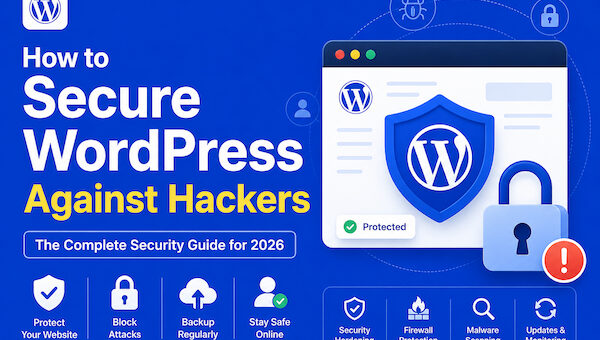
| How to Secure WordPress Against Hackers | wordpress security | Informational | “complete WordPress security guide” |
| WordPress Malware Removal Guide | wordpress malware removal | Problem-solving | “step-by-step malware removal process” |
| Best WordPress Security Plugins Compared | best wordpress security plugin | Commercial investigation | “comparing WordPress security plugins” |
| The Complete WordPress Firewall Guide | wordpress firewall | Commercial investigation | “how a WordPress firewall works” |
| WordPress Security Headers Explained | wordpress security headers | Developer intent | “configuring WordPress security headers” |
| How to Secure wp-config.php | wp-config.php security | Developer intent | “hardening wp-config.php” |
| WordPress Two-Factor Authentication Setup | wordpress 2fa | Informational | “setting up 2FA on WordPress” |
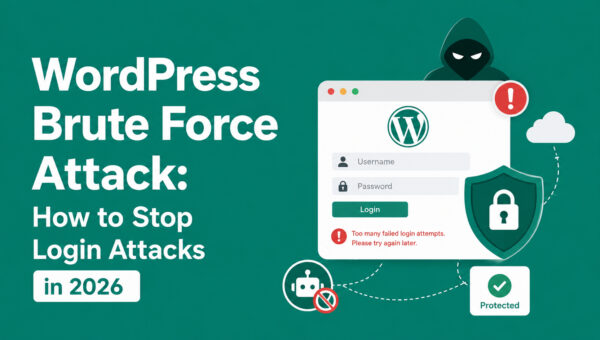
| Stopping WordPress Brute-Force Attacks | wordpress brute force protection | Problem-solving | “blocking brute-force login attempts” |
| Building a WordPress Backup Strategy | wordpress backup strategy | Commercial investigation | “a complete WordPress backup strategy” |
| WordPress File Permissions Explained | wordpress file permissions | Developer intent | “correct WordPress file permissions” |
| WordPress REST API Security Guide | wordpress rest api security | Developer intent | “securing WordPress REST API endpoints” |
| Preventing SQL Injection in WordPress | wordpress sql injection prevention | Developer intent | “preventing SQL injection” |
| Preventing XSS in WordPress | wordpress xss prevention | Developer intent | “cross-site scripting prevention” |
| Setting Up a Cloudflare WAF for WordPress | cloudflare waf wordpress | Commercial investigation | “configuring a WAF for WordPress” |
| WooCommerce Security Checklist | woocommerce security | Commercial investigation | “WooCommerce-specific security checklist” |
| How to Detect WordPress Malware | detect wordpress malware | Informational | “detecting WordPress malware early” |
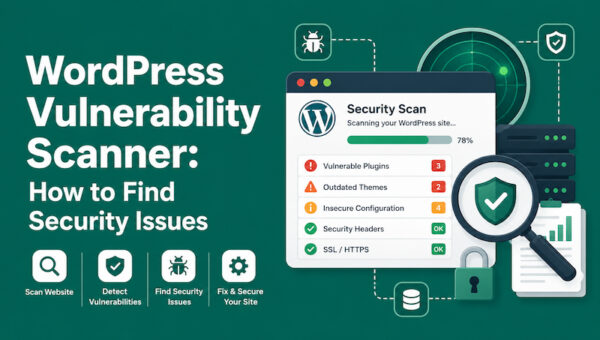
| WordPress Vulnerability Scanning Guide | wordpress vulnerability scanner | Commercial investigation | “scanning for WordPress vulnerabilities” |
| WordPress Security Monitoring Tools | wordpress security monitoring | Commercial investigation | “ongoing WordPress security monitoring” |
| WordPress Plugin Security Best Practices | wordpress plugin security | Informational | “evaluating plugin security” |
| WordPress Theme Security Checklist | wordpress theme security | Informational | “WordPress theme security checklist” |
Visual Content Plan
| Concept | SEO Filename | Alt Text | Placement |
|---|---|---|---|
| WordPress hacking attack chain | wordpress-hack-attack-chain.webp | Diagram of a typical WordPress attack chain | Entry-point section |
| Emergency response timeline (0–24 hours) | wordpress-hack-response-timeline.webp | Timeline of first response steps after a WordPress hack | First 30 minutes section |
| Backup architecture (clean vs infected vs forensic) | wordpress-backup-types-diagram.webp | Diagram comparing WordPress backup types | Backup section |
| Malware detection workflow | wordpress-malware-detection-workflow.webp | WordPress malware detection workflow diagram | Malware types section |
| File vs database infection comparison | wordpress-file-vs-database-infection.webp | Diagram comparing file-based and database-based WordPress infections | Database cleaning section |
| Full recovery process flowchart | wordpress-recovery-process-flowchart.webp | Step-by-step WordPress hack recovery flowchart | Clean WordPress safely section |
| SEO recovery workflow | wordpress-seo-recovery-workflow.webp | WordPress SEO recovery workflow after a hack | SEO recovery section |
| WooCommerce security recovery diagram | woocommerce-hack-recovery-diagram.webp | WooCommerce store hack recovery diagram | WooCommerce section |
| Post-hack hardening checklist infographic | wordpress-post-hack-hardening-checklist.webp | WordPress hardening checklist after a hack | Hardening section |
| Before vs after recovery comparison | wordpress-before-after-recovery.webp | Before and after comparison of a recovered WordPress site | Conclusion / near top as a summary visual |
SEO Package
SEO Title: How to Fix a Hacked WordPress Website Without Losing Data: Complete Recovery Guide for 2026
Meta Description: A hacked WordPress site can be recovered without losing your content. Follow this complete, step-by-step 2026 guide to clean malware and restore your site safely.
URL Slug: /fix-hacked-wordpress-website-recovery-guide/
Primary Keyword: how to fix a hacked WordPress website
Secondary Keywords: hacked WordPress site, WordPress malware removal, WordPress hacked recovery, remove malware from WordPress, WordPress security cleanup, recover hacked WordPress website, WordPress malware scanner, WordPress website security, WordPress hack recovery, WordPress backdoor removal
Search Intent: Primarily problem-solving/transactional (active incident recovery), with supporting informational intent (warning signs, prevention) and commercial investigation (scanners, hosting, WAF options).
Suggested Schema: Article/TechArticle, FAQPage, HowTo (for the step-by-step recovery workflow), BreadcrumbList.
Editorial note: this guide covers general WordPress recovery principles. Before publishing, verify any references to specific vulnerabilities, CVEs, or 2026 WordPress version numbers against current sources such as WordPress.org, WPScan, NVD, and CISA — no specific incidents, statistics, or CVEs have been invented in this article.