
A Clean-Looking Site Can Still Be Wide Open
Your WordPress site loads fine. No defacement, no weird pop-ups, nothing visibly wrong. And it can still be carrying a flaw an attacker can exploit without changing a single pixel on a public page.
That gap — between “looks fine” and “is secure” — is exactly what vulnerability scanning exists to close.
First, an important distinction people constantly blur: a vulnerability is not malware.
- A vulnerability is a weakness — an outdated plugin, a misconfiguration, an exposed file — that could be exploited.
- Malware is malicious code that is already present on your system.
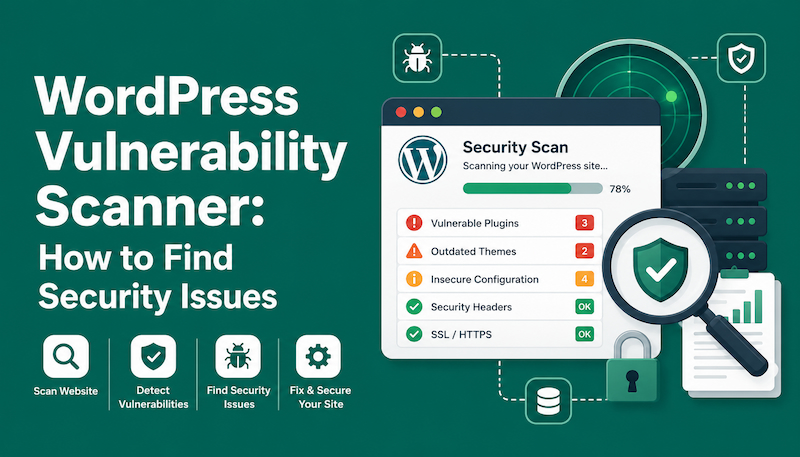
A scanner might surface any of these: outdated WordPress core, vulnerable plugins, vulnerable themes, insecure configuration, exposed files, weak security settings, suspicious file changes, known-vulnerable component versions, or outdated libraries. Some of those are doors left unlocked; others are signs someone already walked through.
Here’s the chain that connects the two, and it’s worth internalizing:
Vulnerability        (a weakness exists)
     ↓
Exploit              (someone uses the weakness)
     ↓
Successful compromise (they gain access or control)
     ↓
Malware / persistence (they install a backdoor to stay)
     ↓
Data theft or damage (the actual harm)Scanning is about intervening as far left in that chain as possible — catching the weakness before it becomes an exploit, and the exploit before it becomes malware.
Which brings us to the mindset for this entire guide:
Security scanning isn’t about finding one magic red warning. It’s about continuously reducing your attack surface.
There’s rarely a single villain. There’s a stack of small exposures, and your job is to keep shrinking that stack — every week, not once a year.
Quick WordPress Security Scan Checklist
Work down this list to get oriented. Each item is explained in depth later.
- Check WordPress core version (and whether it’s patched)
- Check plugin versions against known vulnerabilities
- Check theme versions
- Remove abandoned plugins
- Remove unused themes
- Cross-reference known vulnerabilities (CVEs)
- Scan files for integrity and suspicious code
- Scan the database for injected content
- Review administrator accounts
- Check for suspicious configuration
- Verify SSL/HTTPS
- Check security headers
- Check for exposed files (backups, logs, dumps)
- Check login protection
- Verify backups exist and restore cleanly
- Check hosting/server security (PHP version included)
- Review logs
- Enable continuous vulnerability monitoring
One thing up front: a single scan is a snapshot, not a strategy. New vulnerabilities are disclosed daily — a plugin that scanned clean this morning can have a critical CVE this afternoon. Scanning has to be ongoing.
What Is a WordPress Vulnerability Scanner?
A WordPress vulnerability scanner is a tool that inspects your site and reports known weaknesses — primarily by identifying which versions of WordPress core, plugins, and themes you run, then cross-referencing those versions against databases of known vulnerabilities.
That’s the core job. But “security scanner” is an umbrella term covering several overlapping technologies that people use interchangeably (and shouldn’t):
- Vulnerability scanner — finds known weaknesses (version X of plugin Y has a known flaw).
- Malware scanner — finds malicious code already present (backdoors, web shells, injected scripts).
- Security scanner — a loose term, often bundling both of the above plus configuration checks.
- Penetration test — a human (sometimes tool-assisted) actively attempting to exploit weaknesses to prove real-world impact.
- Vulnerability assessment — a broader, often manual, review of your security posture.
- File integrity scanner — detects changes to files against a known-good baseline.
- Dependency scanner — inspects third-party libraries (npm, Composer) for known-vulnerable versions.
Here’s how they compare:
| Tool type | What it detects | Best use | Key limitation |
|---|---|---|---|
| Vulnerability scanner | Known weaknesses in known versions | Routine posture checks | Only knows published vulnerabilities |
| Malware scanner | Malicious code already present | After suspected compromise | Signature-based misses novel malware |
| File integrity scanner | Unauthorized file changes | Detecting active compromise | Needs a clean baseline; noisy on updates |
| Dependency scanner | Vulnerable third-party libraries | Custom/developer sites | Requires access to the codebase |
| Penetration test | Real, exploitable paths | High-value/compliance sites | Expensive, point-in-time, needs experts |
These technologies overlap but are not identical. A vulnerability scanner tells you a door is unlocked; a malware scanner tells you if someone already came in; a pen test tells you whether the unlocked door actually leads anywhere valuable. You generally want more than one.
What a WordPress Vulnerability Scanner Can Find
A capable scanner (remote, plugin-based, or both) can surface a wide range of issues. Here’s the landscape, grouped by type.
Component vulnerabilities:
- Vulnerable WordPress core — an out-of-date or unpatched core version with known flaws.
- Vulnerable plugins — the single largest source of WordPress vulnerabilities in practice.
- Vulnerable themes — less common than plugins but still a real vector.
- Known CVEs — components matching published vulnerability records.
- Outdated components — behind on updates, whether or not a CVE is public yet.
- Abandoned software — no longer maintained, so flaws will never be patched.
Exposure and configuration:
- Exposed files — publicly reachable backups, logs, or dumps.
- Weak configuration — insecure
wp-config.php, file editing enabled, debug output leaking. - Insecure HTTP headers — missing or misconfigured security headers.
- SSL/TLS issues — expired certs, weak protocols, mixed content.
- Directory listing — folders that reveal their contents to anyone.
- Exposed debug information — stack traces and paths leaking to visitors.
- XML-RPC exposure — reachable
xmlrpc.php(context determines whether it matters). - REST API exposure — endpoints leaking data like usernames.
- Weak login protection — no rate limiting, no 2FA.
- Insecure permissions — files or directories writable when they shouldn’t be.
- Outdated PHP — an end-of-life PHP version with no security patches.
- Exposed backup files — old ZIPs or SQL dumps sitting in web-accessible paths.
Malware and compromise indicators:
- Suspicious files — unexpected PHP where it doesn’t belong.
- Malware indicators — known signatures of malicious code.
- Unexpected administrator accounts — a classic sign of takeover.
- Database anomalies — injected content, rogue options, tampered site URLs.
Each of these is a strand of your attack surface. No single finding is necessarily an emergency — but each one is something to understand, prioritize, and address.
What a Vulnerability Scanner Cannot Guarantee
This section matters more than any list of features, because misplaced trust in a scanner is itself a security risk.
A scanner cannot guarantee:
- 100% malware detection. Novel or well-obfuscated malware can evade signature-based detection.
- 100% vulnerability detection. It only knows what’s been published and what it’s designed to check.
- Zero-day detection. By definition, a zero-day has no published signature or CVE yet.
- Complete server-compromise detection. If the underlying server or hosting account is compromised, a WordPress-level scanner may see nothing wrong.
- Secure business logic. A scanner can’t tell that your custom checkout lets users apply a coupon infinitely.
- Secure custom code. Your bespoke plugin’s SQL injection won’t be in any database.
- Secure third-party integrations. A flaw in an external API you call is outside the scanner’s view.
- Absence of stolen credentials. A valid password used by an attacker looks like a normal login.
- Absence of a compromised hosting account. If your control panel is breached, WordPress can be pristine and still doomed.
Why false positives and false negatives exist: Scanners infer a lot from limited signals. A false positive happens when a scanner flags something benign — say, it detects a plugin version number that was manually patched, or a “dangerous” function used entirely legitimately. A false negative happens when a real problem is missed — obfuscated malware, a custom-code flaw, or a vulnerability newer than the scanner’s database.
The honest conclusion:
No scanner can replace security engineering. It’s a powerful instrument for finding known problems fast — not a substitute for good architecture, maintenance, and judgment.
WordPress Vulnerability vs Malware
Let’s make the distinction concrete, because the response to each is different.
- Vulnerability: a weakness that could be exploited. Nothing malicious is present yet.
- Malware: malicious code that is present and doing (or waiting to do) harm.
Walk the progression:
Outdated plugin with a known flaw   →  Vulnerability (weakness exists)
Attacker exploits that plugin       →  Compromise (weakness used)
Malicious PHP backdoor installed → Malware (harm established)The same event chain, three different states, three different responses:
| Threat | Meaning | Example | How to detect | How to fix |
|---|---|---|---|---|
| Vulnerability | An exploitable weakness | Plugin with a known CVE | Vulnerability scanner (version match) | Update, replace, remove, or mitigate |
| Exploit attempt | Someone trying the weakness | Requests hitting a vulnerable endpoint | WAF/log monitoring | Block, patch, rate-limit |
| Malware | Malicious code present | Web shell in uploads/ | Malware/integrity scanner | Remove, restore clean, close entry point |
The practical takeaway: a vulnerability scanner mostly answers “where am I exposed?” while a malware scanner answers “has something already gotten in?” You want both questions answered.
How WordPress Vulnerability Scanning Works
Most scanners follow a recognizable pipeline. Understanding it helps you interpret results and spot the limits.
Website
   ↓
Identify WordPress        (fingerprint that it's WP at all)
   ↓
Detect WordPress version  (from headers, meta tags, file hashes)
   ↓
Identify plugins          (paths, asset URLs, readme files)
   ↓
Identify themes           (stylesheet headers, asset paths)
   ↓
Compare versions vs vulnerability databases
   ↓
Inspect configuration     (headers, exposed files, TLS)
   ↓
Check known security indicators
   ↓
Generate findings
   ↓
Prioritize risk
   ↓
Remediate
   ↓
RescanStep by step:
- Identify WordPress — confirm the site runs WordPress via telltale paths and markup.
- Detect the version — read version hints from the generator meta tag, readme files, or file fingerprints. (Note: this can be hidden, which we’ll discuss.)
- Identify plugins — enumerate active plugins from their asset URLs and readme files.
- Identify themes — detect the active theme (and sometimes installed-but-inactive ones).
- Compare against databases — match detected versions to known-vulnerable ranges.
- Inspect configuration — check headers, TLS, exposed files, directory listing, and API exposure.
- Check security indicators — look for signs of weak login protection, debug leakage, and more.
- Generate findings — compile everything into a report.
- Prioritize risk — ideally rank by real-world impact, not just raw severity.
- Remediate — you update, replace, remove, or mitigate.
- Rescan — confirm the fix actually worked and introduced nothing new.
A crucial limitation lives in steps 2–4: version detection can be wrong. If a scanner can’t see the true version (hidden, or a component installed outside the plugins directory), it may miss a real vulnerability or flag a phantom one.
Types of WordPress Security Scanners
Not all scanners see the same things. Here’s the landscape.
- Remote scanners — hit your site from the outside like an attacker would.
- Plugin-based scanners — run inside WordPress with full read access to files and DB.
- Server-side scanners — run at the host/server level, scanning the filesystem directly.
- File integrity scanners — compare files to a known-good baseline to catch changes.
- Dependency scanners — inspect third-party libraries (Composer/npm) for known flaws.
- WAF-based detection — infer threats from traffic patterns at the firewall.
- Managed security services — combine scanning, monitoring, and human response.
- Manual security audits — an expert reviews configuration, code, and posture.
- Professional penetration testing — experts actively attempt exploitation.
| Scanner type | Requires WordPress access? | Depth | Best use | Main limitation |
|---|---|---|---|---|
| Remote scanner | No | Shallow–medium | Quick external check, pre-purchase | Sees only public surface |
| Plugin-based | Yes (admin) | Deep | Ongoing owner-managed security | Runs inside the thing it protects |
| Server-side | Yes (server) | Deep | Host-level malware/integrity | Requires server access |
| File integrity | Yes | Deep | Detecting active compromise | Needs clean baseline |
| Dependency scanner | Yes (code) | Deep (code) | Developer/custom sites | Needs source access |
| WAF-based | Partial (traffic) | Medium | Real-time threat blocking | Infers, doesn’t inspect files |
| Managed service | Varies | Deep + human | Businesses wanting hands-off | Ongoing cost |
| Manual audit | Yes | Very deep | High-value/compliance | Expensive, point-in-time |
| Penetration test | Yes (scoped) | Very deep | Proving real exploitability | Expensive, point-in-time |
No single row is “best.” A common, sensible stack: a plugin-based or server-side scanner for depth, a remote scanner for an outside-in view, and periodic manual/pen-test review for anything high-value.
Remote vs Internal Scanning
These two perspectives answer different questions, and the strongest programs use both.
A remote scanner sees what an attacker sees:
- The public-facing attack surface
- HTTP responses and status codes
- Security headers
- Exposed files reachable over the web
- Public endpoints (REST, XML-RPC, login)
- Externally visible software versions
An internal scanner sees what an owner can see:
- The actual files on disk
- Plugin and theme code, not just version numbers
- The database
wp-config.phpand full configuration- File integrity against a baseline
- The server environment (PHP version, permissions)
Why they complement each other: a remote scan tells you what’s exposed to the world — the stuff attackers will find first. An internal scan tells you what’s actually true — the real versions, the real file contents, the injected database row a remote scan could never see. Rely on remote-only and you’ll miss internal compromise; rely on internal-only and you’ll miss how exposed you look from outside.
Scanning WordPress Core
Core is the foundation, so start here.
- Identify the current version. Confirm exactly what you’re running via
wp core version(WP-CLI) or Dashboard → At a Glance — don’t trust that auto-updates worked. - Compare with supported releases. As of mid-2026, WordPress 7.0 “Armstrong” (released May 20, 2026) is current, with maintenance releases like 7.0.2 (July 17, 2026) addressing security issues. Only the current branch is guaranteed security support; older branches get patches only as a shrinking courtesy.
- Check official security advisories. WordPress.org release notes flag which versions fix which issues.
- Verify core file integrity. Compare your core files against official checksums; mismatches suggest tampering or an incomplete update.
- Replace modified core files when integrity checks fail and you can’t explain the change.
- Update safely — on staging first, with a backup and rollback plan.
A real 2026 example of why this matters: the “wp2shell” chain (CVE-2026-63030, a REST API route-confusion flaw, combined with CVE-2026-60137, a SQL injection) affected specific core versions and, chained, enabled unauthenticated remote code execution — with active exploitation in the wild. WordPress pushed forced auto-updates, but the guidance was explicit: verify your version directly rather than assume the update applied. That’s version-checking earning its keep.
One myth to retire: disclosing your WordPress version is not itself a vulnerability. Hiding the version (removing the generator tag) is mild noise reduction against lazy bots — it is not a security control. An unpatched site is exploitable whether or not the version is visible. Patch; don’t hide.
How to Check WordPress Plugins for Security Vulnerabilities
Here’s the uncomfortable reality reflected across vulnerability databases: the large majority of WordPress vulnerabilities live in plugins, not core. If you optimize your attention anywhere, optimize it here.
What to check:
- Outdated plugins — behind on updates, potentially missing security fixes.
- Abandoned plugins — no updates in a long time; flaws will never be patched.
- Vulnerable versions — matching a known-vulnerable range in a database.
- Plugins with known CVEs — publicly documented, often with public exploit details.
- Plugins no longer maintained — sometimes removed from the WordPress.org directory entirely.
- Nulled plugins — pirated premium plugins, a notorious malware vector (more below).
- Unofficial downloads — plugins from random sites instead of trusted sources.
- Custom plugins — your own code, invisible to every public vulnerability database.
- Third-party dependencies — libraries bundled inside plugins that carry their own flaws.
Why plugins dominate the attack surface: they run with significant privileges inside WordPress, they’re written by thousands of independent authors of varying security maturity, and popular ones are attractive targets because one flaw affects millions of sites. In 2026, disclosures like the Loco Translate CSRF-to-RCE (CVE-2026-15005) and an UpdraftPlus authentication bypass (CVE-2026-0352) show how even widely trusted plugins ship serious flaws — and how fast you need to react once they’re disclosed.
Check official advisories, not rumors. Reputable vulnerability intelligence (WPScan, Wordfence/Patchstack feeds, NVD, and the plugin developer’s own changelog) will tell you the affected versions and the fixed version. That “fixed in version X” line is the single most actionable fact in any advisory.
Scanning WordPress Themes
Themes are a smaller slice of the vulnerability pie than plugins, but they’re not zero — and a 2026 example (a critical flaw in the Blocksy theme, CVE-2026-8365, affecting older versions) is a reminder not to ignore them.
Check for:
- Outdated themes — missing security fixes.
- Abandoned themes — unmaintained, unfixable.
- Custom themes — your code, invisible to public databases.
- Third-party themes — from marketplaces of varying quality.
- Nulled themes — pirated, high malware risk.
- Modified files — theme files changed outside of updates.
- Insecure functions — unsafe handling of input, output, or file operations.
- Outdated JavaScript dependencies — bundled JS libraries with known flaws.
A specific recommendation: remove unused themes rather than leaving them installed. Even inactive, a theme’s files sit on disk and can contain an exploitable flaw or be modified by an attacker. Keep one trusted default theme (for troubleshooting fallback) and delete the rest. Fewer files means less attack surface.
Checking WordPress Vulnerability Databases
Version detection is only useful if you can compare against reliable intelligence. Here’s how that ecosystem works.
Authoritative sources include:
- WordPress.org — official core release and security notes.
- WPScan vulnerability database — a large, WordPress-specific vulnerability collection, continuously maintained and available via API and CLI.
- NVD (National Vulnerability Database) — the U.S. government’s CVE repository with CVSS scores.
- CISA — publishes a Known Exploited Vulnerabilities catalog (what’s actually being exploited).
- Vendor security advisories — from security firms tracking the WordPress ecosystem.
- Plugin/theme developer advisories — the source of truth for “fixed in version X.”
- CVE records — the standardized identifiers that tie it all together.
Key concepts you’ll meet in every advisory:
- CVE — a unique identifier for a specific vulnerability.
- CVSS — a standardized 0–10 severity score.
- Severity — the CVSS-derived label (Low/Medium/High/Critical).
- Affected versions — the version range that’s vulnerable.
- Patched version — the first version that fixes it (your target).
- Exploitability — whether/how easily it can be exploited (auth required? public exploit?).
- Remediation — the recommended fix.
A warning that leads into the next section: CVSS alone does not determine your business risk. A “critical” score on a feature you don’t use, behind authentication you enforce, matters far less than a “medium” on your public checkout. Severity is an input to prioritization — not the whole answer.
Understanding CVE and CVSS
Two acronyms you’ll see constantly, demystified.
CVE (Common Vulnerabilities and Exposures) is just an identifier — a catalog number for one specific vulnerability, like CVE-2026-15005. It tells you which flaw is being discussed, nothing more.
CVSS (Common Vulnerability Scoring System) is a standardized severity score from 0 to 10, with bands:
| CVSS range | Severity |
|---|---|
| 9.0–10.0 | Critical |
| 7.0–8.9 | High |
| 4.0–6.9 | Medium |
| 0.1–3.9 | Low |
Here’s the trap to avoid: “Critical” does not mean “automatically exploitable in your environment.” A high score reflects potential impact under the scorer’s assumptions — not your specific setup.
Contextual factors that change your real risk:
- Is authentication required? An unauthenticated flaw is far more dangerous than one needing an admin login.
- Is the vulnerable feature enabled? A flaw in a feature you’ve turned off may be moot.
- Is the plugin even installed? A scary CVE for a plugin you don’t run is irrelevant.
- Is the vulnerable endpoint reachable? If it’s blocked or unreachable, exposure drops.
- Do compensating controls exist? A WAF rule or access restriction can reduce practical risk.
- Does the site handle sensitive data? A store with payment data raises the stakes of any flaw.
Read CVSS as a starting point, then adjust for your reality.
How to Prioritize Vulnerabilities
Do not simply sort by CVSS and work top-down. That wastes effort on scary-but-irrelevant findings while real exposure waits. Use a fuller model:
Risk =
  Severity          (how bad if exploited?)
+ Exploitability    (how easy to exploit? public exploit? auth needed?)
+ Exposure          (is it internet-facing and reachable?)
+ Business Impact   (what breaks — revenue, data, reputation?)
+ Likelihood (is it actively exploited in the wild?)That last factor is underrated: a medium-severity flaw that’s actively being exploited (check CISA’s Known Exploited Vulnerabilities catalog) often outranks a critical one that’s purely theoretical.
Two contrasting examples:
- Critical, unauthenticated, internet-facing, actively exploited (like the 2026 wp2shell chain): fix immediately — this is a drop-everything event.
- Low-severity flaw in an isolated internal feature requiring admin access: lower urgency; schedule it.
A working priority table:
| Priority | Example | Recommended action |
|---|---|---|
| P1 — Emergency | Unauthenticated RCE, actively exploited, public site | Patch now; mitigate at WAF immediately if you can’t patch |
| P2 — Urgent | High-severity auth-required flaw on a live plugin | Patch within days; test on staging |
| P3 — Scheduled | Medium flaw, limited exposure, compensating controls | Patch in the next maintenance window |
| P4 — Low | Low-severity issue in a disabled/internal feature | Track; fix when convenient |
Prioritization is where security engineering beats blind list-clearing.
WordPress Malware Scanning
Vulnerability scanning asks “where am I exposed?” Malware scanning asks “has something already gotten in?” Here’s what malware scanners look for:
- Known malware signatures — patterns matching catalogued malicious code.
- Suspicious PHP — code doing things legitimate site code rarely does.
- Obfuscated code — deliberately scrambled to hide intent.
- Web shells — scripts giving attackers remote command execution.
- Backdoors — hidden re-entry points for persistence.
- Injected JavaScript — malicious scripts added to pages.
- Malicious redirects — sending visitors to attacker-controlled sites.
- Spam injections — hidden pharma/SEO spam.
- Suspicious files — unexpected files in unexpected places.
- Modified core files — core changed from its official checksum.
- Unexpected PHP in uploads —
wp-content/uploadsshould hold media, not executable code.
Why signature scanning alone is not enough: signatures only catch known malware. Attackers constantly mutate their code specifically to dodge signatures. That’s why the strongest detection combines signatures with:
- File-integrity monitoring — flags any change to files that shouldn’t change, even if the injected code is brand new and unsignatured.
- Behavioral indicators — code that makes unexpected outbound requests, writes to files, or executes dynamically deserves scrutiny regardless of signature.
Integrity + behavior catches the novel malware that signatures miss.
How to Scan WordPress Files
Know where to look and what “suspicious” actually means.
Key locations:
wp-admin/andwp-includes/— core directories; should match official files exactly.wp-content/plugins/— plugin code.wp-content/themes/— theme code.wp-content/uploads/— media library. Should contain no PHP.wp-config.php— configuration and secrets..htaccess— server rules (a common target for malicious redirects).
Suspicious indicators:
- Unexpected PHP files, especially in
uploads/ - Recently modified files with no corresponding update
- Unknown scripts you didn’t install
- Obfuscated code
- Hidden redirects in
.htaccessor headers - Code making suspicious external requests
A critical caveat — context is everything. You’ll see advice claiming that functions like base64_decode(), eval(), or gzinflate() “mean malware.” That’s wrong. These functions have entirely legitimate uses — plenty of reputable plugins use base64_decode() for encoding data, and caching or template systems may use compression functions. Their presence is not proof of anything.
What actually raises suspicion is context: obfuscated code that decodes a blob and immediately executes it, located in uploads/, added recently, with no legitimate reason to exist. Judge the whole picture — location, timing, obfuscation, and behavior — not a single function name. Blindly deleting every file containing eval() is a great way to break your site.
Database Security Scanning
Malware and tampering don’t only live in files. The database is a favorite hiding spot because file scanners often overlook it.
Tables to inspect:
wp_options— site settings; a common injection point (roguesiteurl/home, malicious autoloaded options).wp_posts— content; check for injected scripts or spam.wp_postmeta— post metadata; another injection surface.wp_users— accounts; look for users you didn’t create.wp_usermeta— user capabilities; check for silently escalated privileges.
Also inspect WooCommerce and custom plugin tables, which hold orders, keys, and app-specific data.
What to look for:
- Injected JavaScript in post content or options
- Malicious redirects configured in options
- Spam URLs embedded in content
- Rogue administrator accounts
- Suspicious autoloaded options (they load on every page)
- Modified site URLs (
siteurl/homepointing elsewhere) - Malicious scheduled tasks (rogue cron entries that re-infect after cleanup)
Back up the database before modifying anything. Database edits are unforgiving — a bad UPDATE or DELETE can break your site or destroy content with no undo. Export a backup first, change one thing at a time, and verify as you go.
Checking WordPress User Accounts
Accounts are where a lot of compromises become visible. Audit for:
- Unknown administrators — the clearest red flag of takeover.
- Suspicious users — odd usernames, unfamiliar emails, unexpected registration dates.
- Excessive privileges — accounts with more capability than their role needs.
- Inactive accounts — old logins from former staff or agencies, unmonitored and dangerous.
- Compromised accounts — legitimate accounts now controlled by someone else.
This is the right moment to internalize a distinction that recurs throughout WordPress security:
- Authentication answers “Who are you?” (Is this a valid login?)
- Authorization answers “What are you allowed to do?” (Does this user have permission for this action?)
A logged-in subscriber is authenticated — that does not mean they’re authorized to edit posts or install plugins. Many vulnerabilities are fundamentally authorization failures: code that checks whether you’re logged in but not what you’re allowed to do.
Practical account hygiene:
- Least privilege — give each account the minimum role its job needs.
- Unique passwords — one per site, managed in a password manager.
- 2FA — on every account with meaningful privileges.
- Regular reviews — periodically audit who has access and remove what’s stale.
For login-specific defenses, see the companion guide on stopping brute force and login attacks.
Checking WordPress Configuration
Configuration flaws are quiet but consequential. Review these.
wp-config.php:
- Database credentials — must not be exposed or weak.
- Authentication salts/keys — should be unique and strong (regenerate if you suspect compromise).
DISALLOW_FILE_EDIT— set totrueto remove the in-dashboard file editor, a common post-compromise tool for attackers.
Debug settings — these are for development, and leaking them in production is a real exposure:
WP_DEBUG— enables debug mode. Should befalsein production.WP_DEBUG_LOG— writes errors to a log. Fine, if the log isn’t web-accessible.WP_DEBUG_DISPLAY— prints errors to the page. Should befalsein production; leaked stack traces reveal paths and internals to attackers.
.htaccess — verify it hasn’t been tampered with to add redirects or expose files.
PHP settings and file permissions:
- File permissions — files typically
644, directories755,wp-config.phpmore restrictive. Overly permissive (world-writable) permissions are dangerous. - Environment variables — keep secrets in the environment, not hardcoded where they can leak.
The theme here: configuration should reveal as little as possible to the outside world and grant as little write capability as possibly needed.
Checking SSL/TLS and HTTPS
Scanners check your transport security. What matters:
- HTTPS enforced — all traffic encrypted, HTTP redirected to HTTPS.
- Valid TLS certificate — not expired, matches the domain, trusted issuer.
- No mixed content — no HTTP assets loading on HTTPS pages (breaks the security guarantee and triggers browser warnings).
- No insecure HTTP access — the site shouldn’t serve content over plain HTTP.
- Correct redirect configuration — clean, permanent redirects to the HTTPS canonical URL.
But here’s the essential caveat: HTTPS is necessary and not remotely sufficient. It encrypts data in transit — it does nothing about a vulnerable plugin, a weak password, or malware on your server. A site can have a perfect TLS grade and be completely compromised. Treat HTTPS as table stakes, then keep going.
Security Headers Scanning
HTTP security headers instruct browsers to enforce protections. Scanners check which you’re sending.
| Header | What it does | Risk it addresses | Implementation caution |
|---|---|---|---|
| Content-Security-Policy | Controls which resources can load/execute | XSS, injection | Powerful but easy to misconfigure and break scripts/styles |
| Strict-Transport-Security | Forces HTTPS for future visits | Protocol downgrade, mixed content | Test before long max-age; hard to undo |
| X-Content-Type-Options | Stops MIME-type sniffing | Content-type confusion attacks | Low risk; safe to add (nosniff) |
| Referrer-Policy | Controls referrer data sent | Information leakage | Choose a policy matching your analytics needs |
| Permissions-Policy | Restricts browser features (camera, geolocation) | Feature abuse | Only restrict features you don’t use |
Frame protections (X-Frame-Options/CSP frame-ancestors) | Controls framing | Clickjacking | May break legitimate embeds |
The important nuance: don’t blindly bolt on every header. Content-Security-Policy in particular can break a working site — inline scripts stop running, third-party widgets fail, styles vanish. Roll out headers deliberately, test in report-only mode where available (CSP supports this), and verify functionality before enforcing. A header that breaks your site helps no one.
Checking for Exposed Files
Some of the worst breaches start with a file that should never have been public. Scanners check for:
- Debug logs (
debug.log) — may contain paths, queries, and error details. - Backup archives — a public site backup can hand over your entire database.
- Old ZIP files — leftover archives from migrations or edits.
- Database dumps (
.sqlfiles) — the crown jewels if web-accessible. - Temporary files — editor swap files,
.bakfiles. - Environment files (
.env) — often full of secrets and credentials. - Installation files — leftover setup scripts.
- Directory listings — folders that display all their contents to visitors.
Why this is serious: a publicly accessible sensitive file needs no exploit. An attacker doesn’t have to hack anything — they just download your database dump or read your .env and walk away with your secrets. Keep backups, dumps, and logs outside the web root, disable directory listing, and never leave a .sql or .env where a browser can fetch it.
Checking the WordPress REST API
The REST API is core WordPress functionality (and essential for the block editor, headless setups, and integrations). Scanners inspect it, but interpret findings carefully.
What gets checked:
- Public REST endpoints — which are reachable without authentication.
- Authentication — how the API verifies identity.
- Authorization — whether endpoints properly check permissions.
- User enumeration — whether the users endpoint leaks usernames to anyone.
- Custom endpoints — routes added by plugins (a frequent source of authorization bugs).
- API permissions — whether each route’s
permission_callbackis correct.
The key point: REST API exposure is not automatically a vulnerability. The API is supposed to be there. The real questions are whether it leaks sensitive information (like usernames, enabling targeted attacks) or allows unauthorized actions (a custom endpoint missing a permission check). A reachable endpoint that correctly enforces authorization is fine; a reachable endpoint that leaks data or lets anyone act is the problem. And recall the 2026 wp2shell chain began with a REST API route-confusion flaw — the API’s centrality is exactly why its authorization has to be right.
Checking XML-RPC
XML-RPC (xmlrpc.php) is a legacy remote-procedure interface that lets external apps interact with WordPress — historically powering remote publishing, the mobile app, and pingbacks.
Its security relevance:
- Brute-force considerations — it historically allowed bundling many login attempts into one request, amplifying brute force. Modern WordPress has curtailed this, and managed hosts often require application-password authentication for it.
- Pingbacks — have been abused for reflection/DDoS and information disclosure.
- Attack surface — it’s another authentication and functionality endpoint to account for.
When restricting it may make sense: if nothing you use depends on it — no mobile app, no remote publishing, no integration that needs it — limiting or disabling XML-RPC removes surface area.
But don’t blindly disable it on every site. Jetpack and various legitimate integrations may rely on it, and switching it off thoughtlessly can silently break those connections. Confirm what depends on it first, and if you keep it, ensure it uses secure (application-password) authentication. Base the decision on actual requirements, not folklore.
Checking Login Security
Login is the front door, and scanners assess how well it’s defended. The controls that matter:
- Failed login monitoring — visibility into attempts.
- Rate limiting — capping attempts to slow brute force.
- 2FA — a second factor so a stolen password isn’t enough.
- Passkeys — phishing-resistant, cryptographic login (plugin-provided in 2026; not yet native to core).
- CAPTCHA / bot protection — filtering automated login attempts.
- WAF — blocking malicious login traffic at the edge.
- Account lockout — temporary bans after repeated failures.
- Strong passwords — long, unique, password-manager-generated.
Login hardening is deep enough to warrant its own treatment — the companion pillar “WordPress Brute Force Attack: How to Stop Login Attacks” covers rate limiting, 2FA, passkeys, and WAF configuration in detail. For scanning purposes, the goal is simply to confirm these controls exist and function.
WordPress Security Scan: Step by Step
Here’s the complete, safe process — with why each step earns its place.
Step 1 — Back up the website. Why: if anything goes wrong during scanning or remediation, you can restore. Never start without one.
Step 2 — Identify the WordPress version. Why: core version determines which core vulnerabilities apply. Verify directly; don’t assume auto-update worked.
Step 3 — Audit plugins. Why: plugins are the biggest vulnerability source. Enumerate them and their versions.
Step 4 — Audit themes. Why: smaller surface, still real. Note active and inactive themes.
Step 5 — Check vulnerability databases. Why: turn version numbers into actual known-vulnerability findings.
Step 6 — Scan files. Why: catch integrity changes and suspicious code the version check can’t see.
Step 7 — Scan the database. Why: injected content and rogue accounts hide here, invisible to file scans.
Step 8 — Review users. Why: unexpected admins are a top compromise indicator.
Step 9 — Review configuration. Why: debug leakage, file editing, and weak salts are quiet but exploitable.
Step 10 — Check HTTPS/TLS. Why: confirm transport security and catch mixed content.
Step 11 — Check security headers. Why: verify browser-side protections are present and correct.
Step 12 — Check exposed files. Why: a public backup or .env is a breach with no exploit required.
Step 13 — Review login activity. Why: spot attacks in progress and confirm login defenses work.
Step 14 — Review hosting/server security. Why: an end-of-life PHP version or compromised host undermines everything above.
Step 15 — Prioritize vulnerabilities. Why: fix by real risk, not raw severity — emergencies first.
Step 16 — Patch safely. Why: update on staging, test, then production, so fixes don’t break the site.
Step 17 — Rescan. Why: confirm the fix worked and introduced nothing new.
Step 18 — Monitor continuously. Why: new vulnerabilities appear daily; a one-time scan goes stale within hours.
How to Scan WordPress Without Breaking the Site
Scanning is usually safe, but aggressive testing on a live site can cause problems. Do it responsibly.
- Back up first. Always, before any scan that touches files or database.
- Use a staging environment for anything intrusive. Test remediation there before production.
- Prefer low-impact scanning on production; save heavy scans for staging or off-peak hours.
- Avoid aggressive scans on production. Enumeration-heavy or fuzzing scans can spike load or trip protections.
- Schedule heavy scans for low-traffic windows.
- Monitor server resources during scans; stop if CPU/memory spikes threaten availability.
- Avoid destructive testing on live sites — don’t run exploit attempts against production.
- Coordinate with your hosting provider. Some hosts flag or block scanning traffic as an attack; a heads-up avoids surprises.
- Test remediation before production. A fix that breaks checkout is its own incident.
This is also the line between two different activities:
- Security scanning is largely passive: identify components, compare to databases, check configuration. Low risk.
- Penetration testing is active: attempt exploitation to prove impact. Higher risk, and it belongs on staging or under a careful, authorized scope — never as a surprise against live production.
Vulnerability Scanning vs Penetration Testing vs Audit vs Malware Scanning
These four get conflated constantly. Each answers a different question.
| Activity | Question it answers | How | Cadence |
|---|---|---|---|
| Vulnerability scanner | “Where are my known weaknesses?” | Automated version/config comparison | Continuous/frequent |
| Penetration test | “Can these weaknesses actually be exploited here?” | Human-driven active exploitation | Periodic (e.g., annually) |
| Security audit | “Is my overall posture sound?” | Expert review of config, code, process | Periodic |
| Malware scanner | “Is malicious code already present?” | Signature + integrity + behavior analysis | Continuous/frequent |
Think of it as layers of assurance: scanners give you breadth and speed cheaply; pen tests and audits give you depth and real-world validation at higher cost. A mature program uses all four at appropriate intervals.
How to Read a WordPress Security Scan Report
A good report gives you enough to act. Common fields:
- Vulnerability name — a human-readable title.
- Affected component — which plugin/theme/core.
- Affected version — the vulnerable range.
- Patched version — your upgrade target.
- CVE — the identifier for research.
- CVSS — the severity score.
- Exploitability — auth required? public exploit available?
- Evidence — what the scanner observed (the version it detected, the response it saw).
- Recommended fix — the remediation step.
- False-positive possibility — a flag when detection is uncertain.
A sample report row set:
| Component | Affected | Patched | CVE | CVSS | Exploitability | Fix |
|---|---|---|---|---|---|---|
| Example Forms plugin | ≤ 4.2.1 | 4.2.2 | CVE-2026-XXXXX | 8.8 (High) | Unauth, public PoC | Update to 4.2.2 immediately |
| WordPress core | 6.9.0–6.9.4 | 7.0.2 | CVE-2026-63030 | Critical | Unauth, exploited in wild | Update core now; verify version |
| Old Gallery theme | ≤ 1.5 (abandoned) | none | — | Medium | Auth required | Remove; replace with maintained theme |
| Example SEO plugin | 3.1 | 3.1 (current) | — | — | — | Likely false positive; verify version manually |
Reading it well means combining fields: a High CVSS that’s unauthenticated with a public exploit is far more urgent than a High that needs admin access. And when a row is flagged as a possible false positive, verify the actual installed version before you act — don’t “fix” something that isn’t broken.
What to Do After Finding a Vulnerability
A finding is the start of a workflow, not the end. Follow it in order.
Finding
   ↓
Validate            (is it real, or a false positive?)
   ↓
Determine exposure  (is it reachable/exploitable in your setup?)
   ↓
Back up             (before you change anything)
   ↓
Patch / update      (apply the fix — on staging first)
   ↓
Test                (confirm the site still works)
   ↓
Rescan              (confirm the fix took)
   ↓
Monitor (watch for exploitation attempts)Your remediation options, and when each fits:
- Update — the default and best fix when a patched version exists. Apply it.
- Replace — when the component is abandoned or the vendor won’t fix it, swap in a maintained alternative.
- Remove — when you don’t actually need the component. The most complete fix: no code, no vulnerability.
- Mitigate — when you can’t update immediately, reduce risk with a WAF rule, access restriction, or feature disablement (temporary; see next section).
- Isolate — restrict access to the vulnerable functionality (e.g., IP-limit an admin area) while you plan.
- Monitor — watch logs and your WAF for attempts against the flaw until it’s fully resolved.
Match the strategy to the situation: update if you can, remove if you don’t need it, mitigate only as a bridge.
When You Can’t Update a Plugin
Sometimes updating breaks compatibility, or no patch exists yet. Here’s how to manage the gap responsibly.
- Temporary mitigation — reduce exposure while you work toward a real fix.
- WAF rules — a virtual patch can block the specific exploit pattern at the edge.
- Disable the vulnerable feature — if the flaw is in one feature you can turn off, do so.
- Restrict access — IP-limit or authenticate the vulnerable endpoint.
- Replace the plugin — if it’s abandoned, migrate to a maintained equivalent.
- Staging tests — validate any change before production.
- Vendor support — contact the developer; a fix may be imminent or a workaround known.
- Migration planning — if the plugin is a dead end, plan its replacement deliberately.
The essential caveat: mitigation is not the same as fixing the underlying vulnerability. A WAF rule blocking a known exploit pattern buys you time — it doesn’t remove the flaw, and a variant of the attack may slip past. Treat mitigations as a bridge to a real fix (update, replace, or remove), not a permanent destination.
Abandoned and Nulled Plugins
Two categories deserve special warning.
Abandoned/unsupported plugins — no longer updated by their developers. The danger is structural: when a vulnerability is discovered, there will be no patch, ever. You’re running code that can only get less safe over time. Sometimes these are pulled from the WordPress.org directory precisely because of unfixed security issues.
Nulled plugins and pirated themes — cracked premium software distributed for free from unofficial sources. This is one of the most reliable ways to get compromised. Nulled software frequently ships with injected backdoors, malware, or hidden malicious code — you’re not getting a free premium plugin, you’re installing an attacker’s payload with admin privileges. “Unofficial downloads” carry the same supply-chain risk: you have no assurance the code wasn’t tampered with in transit.
The clear recommendation:
If you don’t trust the source, or can’t maintain the component, remove or replace it. Buy premium plugins from the actual vendor, keep them updated, and delete anything abandoned. The cost of a legitimate license is trivial next to the cost of a compromise.
Supply-Chain Security
Every plugin and theme is a dependency — code you didn’t write, running with your site’s privileges. And those dependencies have dependencies of their own.
Consider the full chain:
- Third-party libraries bundled inside plugins and themes.
- JavaScript packages (npm) used in build processes and front-end code.
- Composer dependencies in modern PHP plugins.
- npm dependencies in block editor and admin tooling.
- Plugin vendors themselves — their security practices become yours.
- Compromised update channels — if an attacker compromises a vendor’s release pipeline, a malicious update can reach every site that trusts it.
That last one is the nightmare scenario: a legitimate, trusted plugin pushes an automatic update that’s been tampered with, and thousands of sites install malware without doing anything wrong. It’s rare, but it’s happened across the software ecosystem, and it’s why supply-chain awareness matters.
Where possible, vulnerability scanning should extend to dependencies — dependency scanners inspect the libraries inside your components, not just the components themselves. For developer-managed sites, integrate dependency scanning into your build, and prefer vendors with a track record of prompt, verified security releases.
WooCommerce Vulnerability Scanning
Ecommerce raises the stakes, so it deserves stricter prioritization. A compromise here doesn’t just affect you — it affects your customers and their money.
What needs particular attention:
- Payment integrations — gateway plugins handle money; flaws here are catastrophic.
- Customer accounts — hold personal data and order history; targets for stuffing and theft.
- Order data — sensitive personal and transaction information with compliance implications.
- API keys — for payment, shipping, and tax services; standing credentials worth stealing.
- Webhooks — abusable if endpoints or secrets leak.
- Administrator accounts — control the entire store, including payment settings.
- Third-party plugins — stores tend to run many, expanding the attack surface.
- Custom checkout code — bespoke logic invisible to public vulnerability databases and prone to business-logic flaws.
- Payment gateway integrations — deserve the strongest protection you have.
The guiding principle: for ecommerce, weight “business impact” heavily in your prioritization. A medium-severity flaw touching checkout or customer data on a live store may outrank a high-severity flaw on a brochure site, because the consequence of compromise — financial fraud, data breach, PCI implications, destroyed customer trust — is so much greater. Scan stores more often, patch them faster, and extend 2FA to customer accounts where feasible.
WordPress Security for Developers
If you write WordPress code, you’re producing (or preventing) the vulnerabilities scanners find. Four concepts anchor secure development, and they’re often confused:
- Validation — checking that input is what you expect (is this an integer? a valid email?). Reject bad input early.
- Sanitization — cleaning input to a safe form before storing or processing it.
- Escaping — making data safe for output in a specific context (HTML, attribute, URL, JS).
- Authorization — verifying the user is allowed to perform the action (capability checks).
They operate at different stages: validate and sanitize on the way in, escape on the way out, and check authorization before acting. Skipping any one creates a class of vulnerability.
BAD — trusts input, no authorization, no escaping:
php
add_action('wp_ajax_save_note', function () {
    // No capability check — any logged-in user can call this.
    $note = $_POST['note'];                          // unsanitized input
    update_option('site_note', $note);               // stored as-is
    echo "Saved: " . $_POST['note'];                 // unescaped output → XSS
});GOOD — validates intent, checks authorization, sanitizes and escapes:
php
add_action('wp_ajax_save_note', function () {
    check_ajax_referer('save_note_action', 'nonce');   // intent (CSRF protection)
    if (!current_user_can('manage_options')) {         // authorization
        wp_send_json_error('Forbidden', 403);
    }
    $note = sanitize_text_field(wp_unslash($_POST['note'] ?? '')); // sanitize input
    update_option('site_note', $note);
    wp_send_json_success(['saved' => esc_html($note)]); // escape output
});The broader developer checklist:
- Prepared SQL queries — always use
$wpdb->prepare(); never concatenate user input into SQL. - Nonces — protect state-changing actions against CSRF (they prove intent, not identity).
- Capability checks —
current_user_can()on every privileged action. - Secure file uploads — validate type and contents; store outside executable paths; never trust the filename.
- REST API permissions — always define a real
permission_callback; never leave it returningtruefor writes. - Secure AJAX handlers — nonce + capability check on every handler.
- Secrets management — keep API keys and credentials in environment/config, never hardcoded in committed code.
- Dependency management — track and update your Composer/npm dependencies.
The recurring theme: authentication is not authorization. “Is this user logged in?” and “Is this user allowed to do this?” are different questions, and conflating them is one of the most common WordPress vulnerability patterns.
25 Common WordPress Vulnerability Scanning Mistakes
For each: why it fails and a better approach.
- Scanning once and forgetting. Fails: new vulnerabilities appear daily; a snapshot goes stale in hours. Better: continuous/scheduled scanning.
- Ignoring plugin vulnerabilities. Fails: plugins are the biggest source of flaws. Better: prioritize plugin auditing and updates.
- Ignoring themes. Fails: smaller but real surface (see Blocksy 2026). Better: audit and remove unused themes.
- Ignoring abandoned software. Fails: unfixable flaws accumulate forever. Better: remove or replace unmaintained components.
- Treating every warning as critical. Fails: alert fatigue buries real issues. Better: prioritize by real risk, not raw severity.
- Ignoring critical findings. Fails: the one that matters gets lost. Better: triage so P1s surface immediately.
- Relying only on remote scanners. Fails: they can’t see internal files or the database. Better: pair remote with internal scanning.
- Relying only on plugins. Fails: a plugin scanner runs inside the thing it protects. Better: add server-side and external perspectives.
- Ignoring server-level vulnerabilities. Fails: a compromised host undermines WordPress security. Better: include the server in scope.
- Ignoring PHP version. Fails: end-of-life PHP gets zero security patches. Better: run a supported PHP (8.3+ recommended in 2026).
- Ignoring database security. Fails: injected content and rogue admins hide there. Better: scan the database, not just files.
- Ignoring user accounts. Fails: unexpected admins signal takeover. Better: audit accounts regularly.
- Ignoring API keys. Fails: leaked keys grant standing access. Better: inventory, scope, and rotate keys.
- Ignoring third-party integrations. Fails: their flaws become yours. Better: review integration security and permissions.
- Ignoring logs. Fails: attacks in progress go unnoticed. Better: review and alert on logs.
- Blindly deleting suspicious files. Fails: you break the site or miss the real backdoor. Better: validate context before removing; restore from clean backup.
- Updating without backups. Fails: a bad update with no rollback is a disaster. Better: always back up first.
- Testing changes on production. Fails: users experience your mistakes live. Better: test on staging.
- Assuming HTTPS equals security. Fails: TLS encrypts transit, nothing else. Better: treat HTTPS as one layer among many.
- Assuming a security plugin catches everything. Fails: no tool is complete. Better: layer scanning, monitoring, and good practices.
- Ignoring false positives. Fails: wasted effort and eroded trust in the tool. Better: verify installed versions before acting.
- Ignoring false negatives. Fails: false confidence from a “clean” scan. Better: combine methods; scanners miss zero-days and custom-code flaws.
- Never rescanning after remediation. Fails: you never confirm the fix worked. Better: rescan as a required step.
- Never monitoring continuously. Fails: security decays between scans. Better: enable ongoing vulnerability monitoring.
- Ignoring business impact. Fails: you fix trivia while real exposure waits. Better: weight prioritization by what actually matters to your site.
Free vs Paid WordPress Security Scanners
There’s no universally “best” option — the right choice depends on your site’s value, your technical capacity, and your budget. Here’s an objective comparison of the categories.
| Option | Cost | Depth | Automation | Vuln intelligence | Malware scan | Monitoring | Support | Best for |
|---|---|---|---|---|---|---|---|---|
| Free scanner | Free | Shallow–medium | Limited | Basic/rate-limited | Sometimes | Rarely | Community | Hobby sites, first checks |
| Premium plugin | Low–moderate | Deep | Good | Strong feeds | Usually | Yes | Vendor | Owner-managed business sites |
| Remote scanner service | Free–moderate | Medium | Good | Strong | Limited (external) | Yes | Vendor | Outside-in monitoring, agencies |
| Managed security service | Higher | Deep + human | Full | Strong | Yes | Yes + response | Full | Businesses wanting hands-off |
| Professional audit / pen test | Highest | Very deep | Manual | Human expertise | Manual | Point-in-time | Direct | High-value/compliance |
How to think about it: free tools are genuinely useful for a first look and for hobby sites, but they’re often rate-limited and shallow. Premium plugins add depth, better vulnerability feeds, and malware scanning for a modest cost. Managed services add human monitoring and incident response for those who’d rather not do it themselves. Audits and pen tests provide the deepest, human-validated assurance for sites where a breach would be expensive. Most sites land on a premium plugin plus periodic external checks; higher-value sites add managed monitoring or audits.
Choosing a Security Product: What to Actually Evaluate
Rather than chase brand names, judge any scanner, WAF, monitoring service, or managed-security offering on these criteria:
- Update frequency — how often is the vulnerability database refreshed? (Daily is the modern baseline.)
- Vulnerability database quality — breadth and accuracy of its intelligence (WPScan-, Wordfence-, Patchstack-, and NVD-grade sources matter).
- Detection coverage — core, plugins, themes, configuration, malware, dependencies?
- False-positive rate — a noisy tool you learn to ignore is worse than none.
- Server impact — does scanning slow your site? Can heavy scans be scheduled off-peak?
- Reporting — is it clear and actionable, or a wall of jargon?
- Alerting — does it notify you promptly on new relevant vulnerabilities?
- Support — is help available when you’re mid-incident?
- Pricing model — per-site, per-scan, subscription? Does it scale to your needs?
- Privacy and data handling — what data leaves your site, and where does it go?
- Ease of remediation — does it just find problems, or help you fix them?
For adjacent protections — a WAF, firewall, malware protection, managed WordPress security, secure hosting, and security/vulnerability monitoring — the same lens applies: coverage, accuracy, impact, and support. The best stack is layered and matched to your risk, not the one with the longest feature list.
Featured-Snippet Answers
What is a WordPress vulnerability scanner? A WordPress vulnerability scanner is a tool that inspects a site to find known security weaknesses. It identifies the versions of WordPress core, plugins, and themes you run, then cross-references them against vulnerability databases to report outdated or vulnerable components, misconfigurations, and exposed files — so you can fix them before attackers exploit them.
How do I scan my WordPress website for security issues? Back up first, then identify your WordPress version, audit plugins and themes, cross-reference vulnerability databases, scan files and the database, review users and configuration, check HTTPS, headers, and exposed files, prioritize findings by real risk, patch safely on staging, rescan to confirm, and monitor continuously. Use both a remote and an internal scanner.
What vulnerabilities can a WordPress scanner detect? Scanners detect known-vulnerable versions of WordPress core, plugins, and themes (matched to CVEs), plus misconfigurations, missing security headers, SSL/TLS issues, exposed files like backups and logs, directory listing, user-enumeration exposure, weak login protection, and — with malware scanning — suspicious files, backdoors, and injected code.
Is a WordPress security scanner enough? No. A scanner finds known problems fast, but it can’t guarantee complete detection, can’t find zero-days or custom-code flaws, and can’t secure business logic or stolen credentials. It’s one layer. Combine it with malware scanning, a WAF, good configuration, backups, monitoring, and periodic human review.
How often should I scan WordPress for vulnerabilities? Continuously or at least daily via automated monitoring, because new vulnerabilities are disclosed every day. Run a deeper manual review periodically, and always rescan after any update or remediation. A one-time scan is a snapshot that goes stale within hours.
What’s the difference between malware scanning and vulnerability scanning? Vulnerability scanning finds weaknesses that could be exploited (like an outdated plugin with a known flaw). Malware scanning finds malicious code already present (like a backdoor or injected script). One asks “where am I exposed?”; the other asks “has something already gotten in?” You want both.