
Thousands of Failed Logins Is Not the Same as Getting Hacked
You open your security dashboard on a Monday morning and the number stops you cold: 4,200 failed login attempts over the weekend. Different usernames. Dozens of countries. A wall of red.
Take a breath. That log is evidence of an attack attempt, not proof of a breach.
This distinction matters more than almost anything else in this guide, so let’s separate four states that people constantly blur together:
- Attack attempt — Someone (usually a bot) is trying credentials against your login. This is background noise on the internet. Every public WordPress site sees it.
- Successful authentication — A username and password combination worked. The gate opened.
- Compromised account — An unauthorized party controls a legitimate account. They can now act as that user.
- Compromised website — The attacker has used account access (or another flaw) to modify files, inject code, create admin users, or exfiltrate data.
A mountain of failed logins sits entirely in the first bucket. It’s annoying, it burns server resources, and it deserves a response — but on its own it means your defenses are doing their job.
Here’s the mindset that will carry you through the rest of this article:
Your goal isn’t merely to hide the login page. Your goal is to make automated attacks difficult, expensive, detectable, and ultimately unsuccessful.
Difficult, so a single leaked password isn’t enough. Expensive, so bots move on to easier targets. Detectable, so you know what’s happening before it becomes a problem. Unsuccessful, so even a determined attacker walks away empty-handed.
Let’s build that, layer by layer
Quick WordPress Brute Force Protection Checklist
If you do nothing else today, work down this list. Each item is explained in depth later.
- Use unique, strong passwords (a password manager, not your memory)
- Enable 2FA on every administrator account
- Give each person the least privilege their job requires
- Rate-limit authentication requests
- Add bot protection (CAPTCHA/challenge) where it fits
- Put a WAF in front of WordPress
- Monitor failed and successful login attempts
- Protect hosting/control-panel credentials (they outrank WordPress)
- Remove unused administrator accounts
- Keep WordPress core, plugins, and themes updated
- Force HTTPS everywhere
- Review active sessions and revoke anything suspicious
- Keep tested, off-site backups
Notice what’s not at the top: “change your login URL.” That’s on purpose, and we’ll get to why.
What Is a WordPress Brute Force Attack?
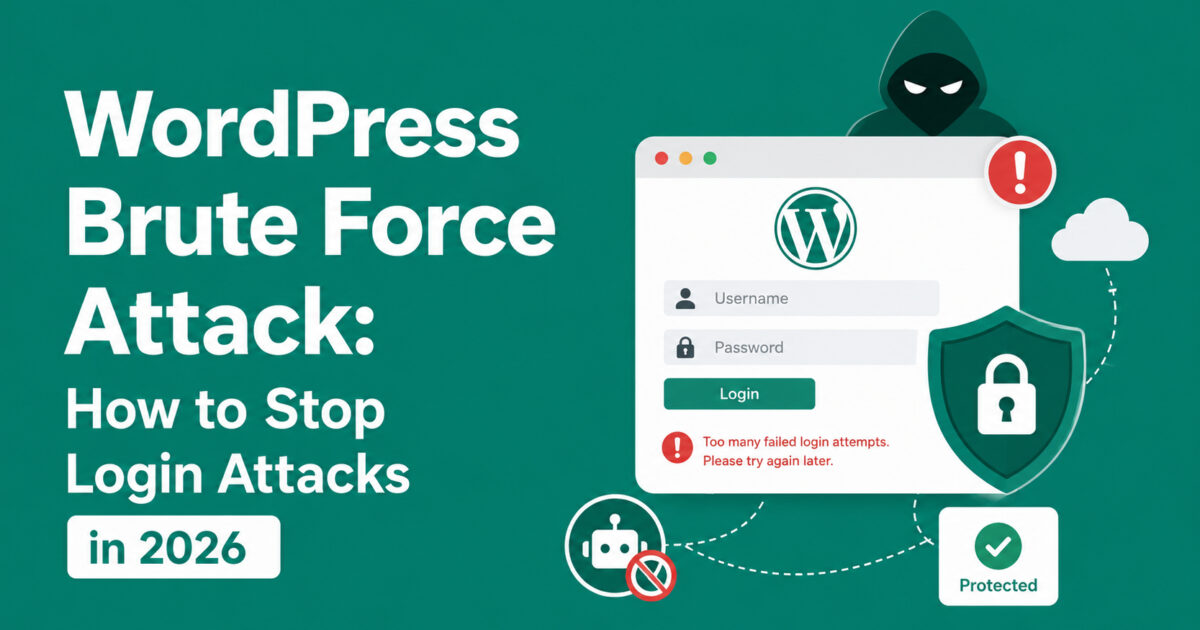
A brute force attack is an attempt to gain access to an account by systematically guessing the password. The attacker doesn’t know your password, so they try many possibilities in rapid succession, hoping one lands.
Against WordPress, this almost always means automated software (a “bot”) firing username and password combinations at your login endpoint — most commonly wp-login.php — thousands of times.
A few related attack types get lumped under the same umbrella. They’re cousins, not twins:
- Brute force (pure): Trying enormous numbers of password possibilities, sometimes every combination of characters up to a length. Slow and computationally expensive, but relentless.
- Dictionary attack: A smarter brute force. Instead of random strings, the bot works through a curated list of likely passwords — common words, leaked passwords, keyboard patterns like
qwerty123. - Credential stuffing: Not guessing at all. The attacker replays real username/password pairs stolen from a breach of some other website, betting that people reuse passwords.
- Password spraying: The inverse of brute force. Instead of many passwords against one account, the attacker tries a few very common passwords (like
Winter2026!) against many accounts, staying under per-account lockout thresholds. - Automated login attack: A catch-all for any of the above, driven by scripts or botnets rather than a human at a keyboard.
Here’s how they compare:
| Attack type | How it works | What the attacker needs | Primary defense |
|---|---|---|---|
| Pure brute force | Guesses many/all password possibilities | Time, computing power, a target endpoint | Rate limiting, lockouts, 2FA, long passwords |
| Dictionary attack | Guesses from a list of likely passwords | A wordlist, a target endpoint | Strong non-dictionary passwords, 2FA, rate limiting |
| Credential stuffing | Replays real leaked credential pairs | A breach dump of username/password combos | 2FA, unique passwords, breached-password detection |
| Password spraying | Few common passwords across many accounts | A list of usernames, common passwords | 2FA, per-account + global monitoring, banning weak passwords |
The takeaway: these are related but not identical. A defense that stops pure brute force (say, per-IP rate limiting) may do little against credential stuffing from a botnet with a valid password. That’s why single-control security fails and layered security wins.
How a WordPress Login Attack Actually Works
Most automated attacks follow a predictable path. Here’s the “failed” flow — the one you see in your logs by the thousand:
        Bot
         │
         ▼
  Find a WordPress site   (scanners crawl the web constantly)
         │
         ▼
  Identify the login endpoint   (wp-login.php, xmlrpc.php, REST auth)
         │
         ▼
  Send automated credentials   (POST username + password)
         │
         ▼
  Server processes authentication   (PHP + database work)
         │
         ▼
  Failed attempt   (wrong password → try again)
         │
└──────────► Repeat thousands of timesNow the flow you’re actually trying to prevent — the “success” path:
        Bot
         │
         ▼
  Stolen / reused credentials   (from a breach elsewhere)
         │
         ▼
  Successful login   (valid password, no second factor)
         │
         ▼
  Administrator access
         │
         ▼
  Malicious plugin / file / new admin user
         │
         ▼
Website compromiseEffective brute force protection has to address both flows:
- Account takeover — stopping the “success” path even when the attacker has a correct password. (This is what 2FA is for.)
- Resource consumption — stopping the “failed” path from hammering your server, because even attempts that never succeed cost you CPU, memory, and database load. (This is what edge rate limiting and WAFs are for.)
If you only defend against one, you’ve left half the door open.
Why WordPress Sites Get Targeted
WordPress isn’t targeted because it’s insecure. It’s targeted because it’s everywhere and it’s valuable. A properly maintained WordPress site is entirely safe to operate; the attacks reflect popularity and payoff, not a fundamental flaw.
Attackers pursue WordPress because of:
- Scale. WordPress powers a huge share of the web, which means a single generic attack script works against millions of potential targets.
- Predictable architecture. The login lives at a known path, the admin area at another. Bots don’t have to be clever to find the door.
- Valuable admin accounts. An administrator can install plugins, edit files, and create users — effectively total control.
- Plugins and themes. A large ecosystem means a large attack surface; a vulnerable component can be an entry point.
- SEO value. An established domain with good rankings is a prize for injecting spam links or cloaked redirects.
- WooCommerce stores. Orders, customer records, and payment integrations raise the stakes dramatically.
- Customer data. Even a simple site may hold emails and personal details worth stealing.
- Server resources. A compromised host becomes free infrastructure for mining, proxying, or launching further attacks.
- Email infrastructure. A hijacked site can send spam or phishing from a “trusted” domain.
- Malware distribution. Compromised sites are used to serve malicious payloads to visitors.
- Post-takeover implants. Once inside, attackers plant backdoors so they can return even after you “fix” the obvious problem.
None of this means “WordPress is dangerous.” It means WordPress is worth defending, and the defense is maintenance, good credentials, and layered controls.
Brute Force vs Credential Stuffing (The Difference That Trips People Up)
These two get confused constantly, and the confusion leads to weak defenses. Let’s be precise.
Brute force is guessing. The attacker does not know your password and is trying to discover it through volume. More attempts = better odds.
Credential stuffing is replaying. The attacker already has a working username/password pair — stolen from a breach of a completely different service — and is testing whether you reused it here. A single attempt can succeed.
Password spraying sits in between: a small set of very common passwords tried across many usernames, deliberately slow and quiet to dodge lockouts.
| Brute force | Credential stuffing | Password spraying | |
|---|---|---|---|
| Knows a real password? | No | Yes (from elsewhere) | No |
| Attempts per account | Many | Few (often 1) | Very few |
| Volume signature | High, noisy | Low, can be quiet | Low, distributed |
| Beaten by rate limiting alone? | Often | Rarely | Rarely |
| Beaten by 2FA? | Yes | Yes | Yes |
Here’s why password reuse is so dangerous: credential stuffing turns someone else’s security failure into your breach. You can have a strong, unique-feeling password, but if you used it on a forum that got breached in 2022, it’s now on a list, and a bot will eventually try it against your WordPress admin. The one control that defeats all three of these at once is 2FA — because a leaked or guessed password is no longer sufficient on its own.
How to Detect a Brute Force Attack: 15 Signs
You can’t defend what you can’t see. Here are 15 signals that login attacks are hitting your site.
- Repeated failed logins in your security or server logs.
- Many attempts from a single IP in a short window.
- Distributed attempts — the same behavior spread across hundreds of IPs (a botnet).
- Attempts against usernames that don’t exist on your site.
- Unusual geographic patterns — a burst of logins from regions you have no audience in.
- Sudden CPU spikes with no matching traffic increase from real visitors.
- More PHP workers consumed, because every login attempt runs PHP.
- A sluggish admin panel while the attack runs.
- A jump in total server requests, especially POSTs.
- Repeated POST requests to
wp-login.phporxmlrpc.php. - Suspicious user agents — empty, malformed, or obvious scripting libraries.
- An unexpected successful login — the one that should make your stomach drop.
- A new administrator account you didn’t create.
- Password reset emails you didn’t request.
- Unfamiliar active sessions in your user/session list.
One crucial point: distributed attacks defeat IP-based blocking. When 5,000 requests come from 5,000 different residential IPs, banning IPs is whack-a-mole. Signals 3, 12, 13, and 15 matter more than raw attempt counts, because they hint at success rather than mere noise.
How to Check WordPress Login Activity
When you want to investigate rather than just react, these are your sources:
- WordPress security plugin logs — the friendliest view; most log usernames, IPs, and outcomes.
- Hosting access logs — raw HTTP requests, often in your control panel.
- Server logs (Nginx/Apache) — the ground truth for what hit the server.
- WAF logs — what your firewall blocked or challenged.
- CDN logs — edge-level view of traffic before it reached origin.
- Authentication logs — successful and failed auth events specifically.
For each login event, look at:
- Timestamp — clustering reveals automated bursts.
- IP address — one loud IP vs. many quiet ones tells you the attack type.
- Username — real accounts targeted, or garbage/enumeration?
- Request path —
wp-login.php,xmlrpc.php, or a REST route. - Status code — a
200on a login POST after many401/403s deserves attention. - User agent — real browsers vs. scripts.
- Geographic pattern — consistent with your audience, or not.
- Successful authentication — the single most important thing to confirm or rule out.
A note on responsibility: log what you need to defend the site. You don’t need to hoard personal data to spot an attack — request metadata is usually enough, and collecting less reduces your own risk and compliance burden.
The Most Important Defense: Strong Authentication
Every fancy control downstream matters less than this: the credential itself.
- Unique passwords. Never reuse a password across sites. Reuse is what makes credential stuffing work.
- Password managers. Stop trying to remember passwords. Let software generate and store long random ones.
- Length over complexity theater. A long passphrase (four or five random words) beats
P@ssw0rd!on both strength and memorability. NIST’s guidance has favored length and screening against known-breached passwords over forced symbol-juggling for years. - Protect the admin account above all. It’s the crown jewel; treat it accordingly.
- Use roles deliberately. Editors, authors, and contributors exist for a reason. Not everyone needs to be an administrator.
- Least privilege. Give each account the minimum capability its job requires, and nothing more.
And a myth worth killing: renaming the “admin” username is not, by itself, a security strategy. It slightly raises the bar for the laziest bots, but usernames leak through author archives, REST endpoints, and content bylines. Treat username obscurity as a minor bit of noise reduction, not a defense you rely on.
Two-Factor Authentication: Why 2FA Turns a Stolen Password Into a Non-Event
This is the highest-leverage change most WordPress admins can make. Here’s the whole argument in two diagrams.
Password only:
Username + Password ──► AccessIf the password leaks, the attacker is in. Full stop.
With 2FA:
Username + Password + Second Factor ──► AccessNow a leaked or guessed password gets the attacker to a second locked door — one they’d need your phone or hardware key to open. Credential stuffing, dictionary attacks, and password spraying all collapse against this, because a correct password is no longer sufficient.
The common second factors, from strongest to weakest:
- Security keys / passkeys (FIDO2 / WebAuthn). The gold standard. Phishing-resistant by design, because the credential is cryptographically bound to your actual domain and can’t be replayed on a fake login page. More on passkeys next.
- Authenticator apps (TOTP). The strong, practical default. A code from an app like Google Authenticator, 1Password, or Bitwarden, working on any phone. Setup takes under a minute.
- Backup codes. One-time recovery codes to print or store in your password manager. Essential so you don’t lock yourself out — but treat them like passwords.
- Email OTP. Acceptable only as a recovery fallback, not a primary factor. Your email is often the reset path for everything, so it’s a weak link.
- SMS OTP. Avoid for administrators. SMS is vulnerable to SIM-swapping and interception; NIST has flagged it as a “restricted” authenticator for years, and Microsoft has called SMS and voice the least secure MFA methods available.
Account recovery is where 2FA setups quietly fail. If your recovery method is a single email address protected only by a password, you’ve undone much of the benefit. Secure the recovery path too: strong unique password on the mailbox, 2FA on the mailbox, and safely stored backup codes.
A realistic 2026 setup for a typical WordPress site: TOTP for every admin as the baseline, passkeys for anyone on a modern device who wants tap-and-go, email OTP only as fallback, and SMS off the list.
Passkeys and Passwordless Authentication
Passkeys are the most meaningful authentication advance available to WordPress in 2026, so they deserve their own section.
A passkey is a cryptographic credential built on the WebAuthn standard (part of FIDO2). Instead of a shared secret you type, your device holds a private key that never leaves it, and the site holds only the matching public key. When you log in, your device proves possession of the private key through a challenge-response — authorized by your fingerprint, face, or device PIN.
Why this is a leap forward:
- Phishing-resistant by design. A passkey is bound to the real domain. A fake login page at a look-alike domain simply can’t trigger the right credential. This defeats the phishing that often precedes account takeover.
- Nothing to steal in a breach. The server stores only a public key. There’s no password hash to crack, no secret to leak.
- No reuse problem. Each passkey is unique to the site by construction.
- Fast. Tap, biometric, done.
How passkeys differ from passwords: a password is a secret you know and can be phished, guessed, or leaked. A passkey is a secret your device holds and proves cryptographically — it can’t be typed into the wrong site or read off a breach dump.
Where they fit in WordPress: core does not ship native passkey login as of 2026 — the security change in WordPress 6.8 (April 2025) was switching password hashing to bcrypt, not adding passkeys. Passkeys come via plugins. The community-maintained Two Factor plugin adds passkeys through its companion Two-Factor Provider: WebAuthn; WP 2FA by Melapress and Shield Security also offer WebAuthn/passkey support, and standalone options like Secure Passkeys exist. In practice you enable passkeys alongside passwords, prompt users to enroll, track adoption, and eventually mandate them for admins.
One caveat: passkeys are for human sign-ins. For automation and integrations, use application passwords (covered below), not passkeys.
Rate Limiting: Making Volume Attacks Expensive
What is login rate limiting? It’s controlling how many authentication attempts a client can make in a given window — and what happens when they exceed it.
The difference is stark:
Without rate limiting:
1,000 requests ──► server processes 1,000 full authentication attemptsWith rate limiting:
Excessive requests ──► delayed, challenged, or blocked before full processingRate limiting can live at several layers, and the earlier it happens, the cheaper it is for you:
- WordPress/plugin level. A security plugin counts failed logins and locks out after a threshold. Easy to deploy, but WordPress (and PHP, and the database) still runs for each attempt before the plugin decides.
- Web server level (Nginx/Apache). The server throttles requests to
wp-login.phpbefore PHP executes. More efficient. - CDN/WAF level (the edge). Malicious requests are stopped before they ever reach your server. Most efficient, and it also shields origin resources.
Good rate limiting is more nuanced than “block the IP.” Real-world controls combine:
- Per-IP limits — cap attempts from one address.
- Per-account limits — cap attempts against one username, regardless of source IP (this is what catches distributed attacks on a single admin).
- Global limits — a ceiling on total login attempts site-wide during a storm.
- Burst limits — allow a short spike (a human fat-fingering their password twice) but clamp sustained floods.
- Progressive delays — each failed attempt adds a growing delay, quietly destroying a bot’s throughput.
- Temporary bans — escalate from slow-down to short lockout to longer lockout.
The trade-off is false positives. Set thresholds too aggressively and you lock out a real user who mistyped their password on hotel Wi-Fi shared by other guests behind one IP. Combine per-account limits with progressive delays (rather than instant hard bans) to punish bots while barely inconveniencing humans.
Can a WAF Stop WordPress Brute Force Attacks?
Short answer: a WAF is one of your strongest tools against login attacks, but it is not a complete solution on its own.
A Web Application Firewall inspects incoming HTTP requests and blocks those matching malicious patterns. For WordPress it comes in a few flavors:
- Cloud WAF — runs at the edge (e.g., a CDN-integrated firewall) before traffic reaches your host.
- Server firewall — runs on your infrastructure.
- Plugin-level firewall — runs inside WordPress; easiest to install, but the request has already reached your server.
Against login attacks, a WAF can detect and act on:
- Request frequency — throttling floods of login POSTs.
- IP reputation — blocking addresses known for abuse.
- Bot behavior — spotting automation by how requests are shaped, not just where they’re from.
- Suspicious patterns — malformed requests, known attack signatures.
- Geographic anomalies — challenging traffic from unexpected regions.
- Automated clients — flagging non-browser user agents and missing browser characteristics.
What a WAF cannot guarantee: it won’t stop an attacker who logs in with a valid, stolen password that arrives through normal-looking traffic. A WAF filters how requests look; it doesn’t know your password is on a breach list. That’s why 2FA sits behind the WAF, not instead of it.
CDN + Cloudflare-Style Protection: Defending the Origin
Putting a CDN with edge security in front of WordPress changes the geometry of the fight. Malicious traffic gets filtered far from your server.
   Visitor / Bot
        │
        ▼
       CDN            (global edge; absorbs and caches)
        │
        ▼
       WAF            (blocks known-bad requests)
        │
        ▼
  Bot Detection       (challenges automated clients)
        │
        ▼
  Rate Limiting       (throttles floods)
        │
        ▼
  Origin Server       (only clean traffic arrives)
        │
        ▼
WordPressThe advantages:
- Blocks malicious requests before they reach WordPress, so PHP and your database never process them.
- Reduces origin load, keeping the site fast during an attack.
- Protects login endpoints specifically, since you can apply stricter rules to
wp-login.php. - Improves resilience against automated traffic and volumetric abuse.
The limitations and configuration risks are real:
- Origin exposure. If attackers discover your server’s real IP, they can bypass the CDN entirely. Restrict your origin to only accept traffic from the CDN.
- Over-aggressive rules can challenge or block legitimate visitors, hurting conversions and accessibility.
- Misconfiguration can cache things it shouldn’t or break login flows. Test after every change.
An edge layer is powerful, but it’s a layer — not the whole wall.
Login Limitation Plugins: A Neutral Buyer’s Framework
WordPress security plugins can implement a lot of what we’ve discussed: failed-login limits, temporary lockouts, IP and username blocking, CAPTCHA, 2FA, security logging, firewall rules, and malware scanning.
I’m deliberately not going to crown one plugin “the best.” The right choice depends on your site, host, budget, and team. Instead, evaluate features against this framework:
| Feature | Why it matters | Best handled at plugin level? | Best handled at WAF/edge level? | Potential limitation |
|---|---|---|---|---|
| Failed-login limits | Slows brute force | Yes (simple) | Yes (more efficient) | Plugin still runs PHP per attempt |
| Temporary lockouts | Escalating deterrent | Yes | Yes | Can lock out shared-IP users |
| IP blocking | Stops single-source attacks | Yes | Yes (with reputation data) | Useless vs. distributed botnets |
| Username blocking | Catches per-account targeting | Yes | Sometimes | May aid enumeration if messages differ |
| CAPTCHA / challenge | Filters bots | Yes | Yes (invisible challenges) | Friction, accessibility cost |
| 2FA | Defeats stolen passwords | Yes | Via IdP/SSO | Recovery must be secured |
| Security logging | Visibility & forensics | Yes | Yes | Log storage/retention overhead |
| Malware scanning | Post-compromise detection | Yes | Host-level often better | Detection ≠ prevention |
Read the table as a combination strategy, not a single-winner contest. Plugins are convenient and close to WordPress; edge/WAF controls are more efficient and harder to bypass. Most strong setups use both.
CAPTCHA and Bot Protection: Useful, But Not a Cure
CAPTCHA and bot protection add a check that’s easy for humans and hard for bots. The modern forms are far less annoying than the old squint-at-warped-letters kind:
- Traditional CAPTCHA — solve a puzzle or identify images.
- Invisible challenges — run silently in the background, only escalating if something looks off (e.g., Cloudflare Turnstile, reCAPTCHA v3).
- Behavioral detection — analyze mouse movement, timing, and interaction patterns.
- Bot scoring — assign a risk score and act on it (allow, challenge, block).
- Challenge-based protection — present a proof-of-work or interaction only to suspicious clients.
CAPTCHA is genuinely useful on high-value forms: login, registration, password reset, checkout.
But putting CAPTCHA everywhere hurts real people. It adds friction that lowers conversions, and — this matters — it creates accessibility barriers for users relying on screen readers or those with motor or cognitive disabilities. A CAPTCHA that a bot solves with an AI service but a blind user can’t solve is worse than useless.
Use CAPTCHA as one layer, favor invisible/behavioral challenges over visual puzzles, and lean on 2FA and rate limiting for the heavy lifting. Don’t let CAPTCHA become your only line of defense.
Does Changing the WordPress Login URL Stop Brute Force Attacks?
Direct answer: changing your login URL reduces noise from unsophisticated bots, but it is not a security strategy. It’s obscurity, not protection.
Moving wp-login.php to /my-secret-door will make the dumbest scanners miss you, which can quiet your logs and shave some wasted server load. That’s a real, if modest, benefit. But it does not protect you, because:
- Attackers can discover alternate endpoints. Enumeration, referrer leaks, plugin behavior, and simple guessing all expose custom login paths.
- REST API authentication exists. Login isn’t the only door.
- XML-RPC may be reachable depending on configuration (more below), offering another authentication path.
- Stolen credentials remain dangerous. A hidden login page does nothing against a valid password from a breach.
- Admin accounts can be attacked through other mechanisms, including application passwords and any custom auth.
Treat login-URL changes as noise reduction, welcome but minor. The real work is 2FA, rate limiting, WAF, and strong unique credentials. Hiding the door is not the same as locking it.
XML-RPC and Login Attacks
XML-RPC (xmlrpc.php) is a legacy remote-procedure interface that lets external applications interact with WordPress. It once powered remote publishing, pingbacks, and the Jetpack/mobile app connection.
Why it historically mattered for brute force: XML-RPC’s system.multicall method could bundle many login attempts into a single HTTP request — an amplification that let attackers try hundreds of passwords per request and evade naive per-request rate limits. It’s also non-interactive, so it can’t present a CAPTCHA or 2FA prompt.
The picture in 2026 is better. WordPress core now limits XML-RPC to one failed authentication attempt per system.multicall, blunting the classic amplification. More importantly, since WordPress 5.6, application passwords exist, and modern/managed environments increasingly require application passwords (rather than the user’s main password) for XML-RPC authentication — which removes the ability to brute-force a user’s real password over that endpoint.
When disabling XML-RPC makes sense:
- You don’t use the mobile app, remote publishing tools, or any service that depends on it.
- You’ve confirmed nothing in your stack (some backup or integration tools) relies on it.
When not to blindly disable it:
- Jetpack and various legitimate integrations may need it. Break it thoughtlessly and you’ll spend an afternoon debugging why your app stopped connecting.
The principle: configure security based on actual requirements, not folklore. Check what uses XML-RPC before you switch it off, and if you keep it, ensure it requires application-password (or 2FA-compatible) authentication.
The WordPress REST API and Authentication
The REST API is how modern WordPress (and headless setups, mobile apps, and integrations) reads and writes data programmatically. It’s powerful and, by default, exposes some information — notably user enumeration through the users endpoint.
Key concepts:
- Authentication — proving who you are. For machine access, use application passwords: 24-character, per-application, individually revocable tokens introduced in WordPress 5.6. They authenticate via HTTP Basic Auth over HTTPS and, crucially, cannot be used to log into wp-admin — they’re for scripts and services, not humans.
- Authorization / permissions — what that identity is allowed to do. Scope each application password’s user to only the capabilities the integration needs (a publishing pipeline needs an author, not an administrator).
- Rate limiting — apply it to authenticated REST routes too, not just the login form.
A subtle but important point: hiding an endpoint is not the same as securing it. You can obscure the users route, but the real fixes are restricting sensitive endpoints to authenticated users and disabling user enumeration properly. A representative hardening filter looks like this (adapt to your needs, test before deploying):
php
// Require authentication for REST access to sensitive data
add_filter('rest_authentication_errors', function ($result) {
    if (true === $result || is_wp_error($result)) {
        return $result;
    }
    if (!is_user_logged_in()) {
        return new WP_Error(
            'rest_not_logged_in',
            __('You are not currently logged in.'),
            ['status' => 401]
        );
    }
    return $result;
});Restrict, authenticate, and scope. Don’t rely on the route being hard to find.
Server-Level Protection: Stopping Attacks Before PHP Runs
The cheapest request to defend against is the one your server rejects before WordPress even wakes up. Server-level controls sit in front of PHP:
- Nginx / Apache can throttle or restrict access to login endpoints directly.
- Reverse proxy in front of your app server can filter and rate-limit traffic centrally.
- Firewall rules block known-bad sources at the network edge.
- fail2ban-style controls watch logs and dynamically ban IPs that trip rules (e.g., repeated failed logins).
- Rate limiting at the web-server tier stops floods before PHP executes.
- PHP workers and server resources are finite — every attack request you absorb at the web-server layer is a worker you didn’t waste.
The efficiency argument is the whole point: if a request never reaches PHP, it costs you almost nothing. A login flood that a plugin handles still spins up PHP and hits the database for every attempt; the same flood dropped by Nginx or a firewall barely registers. This is why layering server-level (and edge-level) controls under your plugin-level ones dramatically improves resilience.
Conceptual example only — real values depend on your traffic and host, and you should never deploy blindly:
nginx
# Conceptual: a rate-limit zone for the login endpoint
limit_req_zone $binary_remote_addr zone=wplogin:10m rate=20r/m;

location = /wp-login.php {
    limit_req zone=wplogin burst=5 nodelay;
    # ... pass to PHP ...
}That says, roughly, “allow about 20 login requests per minute per IP, tolerate a small burst, throttle the rest.” Tune the numbers to your reality.
WordPress Login Security for Developers
If you build on WordPress, login security is your responsibility too. A few principles separate secure code from dangerous code.
Authentication is not authorization. This confusion causes real vulnerabilities.
- Authentication asks: “Is this user logged in?”
- Authorization asks: “Is this user allowed to perform this action?”
A logged-in subscriber is authenticated. That does not mean they may delete posts. Every privileged action needs a capability check.
BAD — checks only that someone is logged in:
php
add_action('wp_ajax_delete_widget', function () {
    // Any logged-in user reaches here — including subscribers!
    delete_widget($_POST['id']);
});GOOD — verifies intent (nonce) and permission (capability):
php
add_action('wp_ajax_delete_widget', function () {
    check_ajax_referer('delete_widget_action', 'nonce');   // intent
    if (!current_user_can('delete_widget')) {              // authorization
        wp_send_json_error('Forbidden', 403);
    }
    delete_widget(absint($_POST['id']));
});Round out the developer checklist:
- Capability checks on every sensitive operation (
current_user_can()), not role-name string comparisons. - Nonces (
wp_nonce_field,check_admin_referer) to prevent CSRF — nonces prove intent, not identity, so pair them with capability checks. - Session management — respect WordPress’s auth cookies; provide a way to invalidate sessions.
- Secure cookies —
HttpOnly,Secure, and appropriateSameSiteflags. - Secure REST endpoints — always define a
permission_callback; never leave it returningtruefor write operations. - Application passwords for machine access, scoped to least privilege.
- Custom login/auth systems — think hard before building your own. Custom authentication is easy to get subtly, dangerously wrong; prefer the core primitives.
Nginx / Apache Rate Limiting (Conceptually)
Server-level rate limiting works by defining how many requests a client may make and what happens beyond that. The core ideas:
- Request zones — a named, memory-backed counter keyed by client (usually IP), so the server can track request rates.
- Rate — the sustained requests-per-time you permit (e.g., 20 per minute).
- Burst — a short allowance above the rate for legitimate spikes, after which requests are delayed or rejected.
- Reverse proxy considerations — behind a proxy or CDN, the “client IP” your server sees may be the proxy’s. Configure trusted proxy headers (like
X-Forwarded-For) correctly, or you’ll rate-limit everyone as if they were one client.
Apache achieves similar outcomes through modules (e.g., mod_evasive, mod_security) rather than Nginx’s limit_req.
Two warnings that matter more than the syntax:
- Hosting varies enormously. Managed hosts may not let you edit server config at all; others expose it fully. Check what you can actually change before planning around it.
- Do not paste blanket configs from the internet. A limit that’s fine for a quiet blog can lock out a busy membership site — or an office full of people behind one NAT’d IP. Start permissive, watch your logs, tighten gradually.
IP Blocking: Why It Isn’t Enough
IP blocking feels satisfying — you see a bad IP, you ban it, the attempts from that address stop. Against a modern attacker, it’s often theater, because they can trivially use:
- Rotating IP addresses — a new address per request.
- Botnets — thousands of compromised machines, each a “real” IP.
- Proxies — cheap, disposable, endless.
- Residential proxies — traffic routed through real home connections, indistinguishable from legitimate users and impossible to blanket-ban without collateral damage.
- Cloud infrastructure — spin up, attack, tear down, repeat.
So IP blocking is a useful signal, not a sufficient defense. Modern protection combines:
   IP reputation
        +
   Rate limiting
        +
   Behavior analysis
        +
   2FA
        +
   Strong, unique credentials
        +
   WAF
        +
MonitoringNo single item on that list stops a determined attacker. Together, they make the attack expensive, slow, and detectable — which is the goal.
Geo-Blocking: A Blunt Instrument, Used Carefully
Geo-blocking restricts access based on country:
- Country blocking (denylist) — block regions you have no business serving.
- Allowlist — permit only specific countries (powerful for internal tools with a known user base).
- Business-requirement driven — the only sound basis for either.
When it makes sense: an internal admin panel used only by staff in two countries, or a regional business with no legitimate overseas audience. In those cases, an allowlist genuinely shrinks the attack surface.
The warning is important: don’t block an entire country just because attacks originate there. Attacks originate everywhere, often routed through infrastructure in countries that also contain your real customers. Aggressive geo-blocking risks locking out:
- Legitimate customers in blocked regions.
- Traveling employees or admins who suddenly can’t log in from abroad.
- APIs and integrations whose servers live in a blocked region.
- VPN users whose exit nodes land somewhere you blocked.
Use geo-blocking where your audience is genuinely bounded. Everywhere else, prefer behavior-based controls that don’t punish people for their geography.
How to Stop WordPress Brute Force Attacks — Step by Step
Here’s the complete workflow, in order, with the why for each step.
Step 1 — Use a unique, strong password. Why: It’s the credential everything else protects. A long, unique, password-manager-generated password defeats guessing and neutralizes reuse-based stuffing.
Step 2 — Enable 2FA / passkeys. Why: This is the single change that makes a stolen or guessed password insufficient. Highest leverage on the list.
Step 3 — Remove unused admin accounts. Why: Every admin account is a target. Old accounts from former staff or agencies are unmonitored doors.
Step 4 — Apply least privilege. Why: If an editor account is compromised, the blast radius is far smaller than an admin. Give people only what they need.
Step 5 — Enable login rate limiting. Why: Caps the speed of guessing, turning a fast brute force into a crawl and making it detectable.
Step 6 — Add WAF protection. Why: Blocks known-bad requests and floods, ideally before they reach your server.
Step 7 — Add bot protection where needed. Why: Invisible challenges filter automated clients on high-value forms without punishing humans.
Step 8 — Monitor login activity. Why: You need to see both failed and successful logins to distinguish noise from a breach.
Step 9 — Update WordPress, plugins, and themes. Why: Login hardening is wasted if an unpatched plugin is a separate open door.
Step 10 — Secure hosting credentials. Why: Your control panel, SFTP, and database access outrank WordPress. If those leak, WordPress security is moot.
Step 11 — Review API / application passwords. Why: These are standing credentials. Audit them, scope them, and revoke anything unused.
Step 12 — Maintain tested backups. Why: Recovery is a security control. An untested backup is a guess; a tested, off-site backup is a plan.
Step 13 — Test your security controls. Why: Confirm lockouts trigger, 2FA is enforced, and you didn’t accidentally lock yourself out. Controls you haven’t tested are assumptions.
Step 14 — Monitor continuously. Why: Security is a state you maintain, not a task you finish. Alerts on new admins, unexpected logins, and successful auth from odd locations catch problems early.
How to Protect wp-admin
The admin area is where a compromise turns catastrophic. Layer these:
- 2FA on every account with admin access. Non-negotiable.
- Strong, unique passwords, managed in a password manager.
- Least privilege — minimize how many true administrators exist.
- IP restrictions where appropriate — excellent for a fixed-office internal tool.
- VPN for internal teams where appropriate — put wp-admin behind the VPN so it’s not publicly reachable at all.
- WAF in front of the admin paths.
- Rate limiting on login and admin-ajax.
- Secure sessions — reasonable timeouts, cookie flags, session revocation.
- Administrator monitoring — alert on new admin creation and privilege changes.
A key nuance: IP allowlisting is superb for private, internal systems with fixed IPs — and a liability for remote teams or people on changing/mobile connections. A freelancer on café Wi-Fi, an admin traveling, or a team on dynamic home IPs will lock themselves out. Match the control to how your team actually works.
What to Do If an Attacker Successfully Logged In
First: a successful login does not automatically mean malware was installed. But it must be investigated immediately and thoroughly. Work through this in order.
- Confirm the compromise. Verify the login was genuinely unauthorized (not a colleague, not your own forgotten session). Check IP, time, and user agent against known-good activity.
- Preserve logs. Before you change anything, copy server, WAF, CDN, and plugin logs. You’ll need them to find the entry point.
- Revoke sessions. Force-log-out all sessions so the attacker’s active session dies.
- Reset passwords. Change the compromised account’s password and any that may share it. Reset admin passwords broadly if in doubt.
- Remove unauthorized users. Delete any accounts the attacker created — especially new administrators.
- Rotate application passwords. Revoke and reissue them; a compromised admin could have generated persistent API tokens as a backdoor.
- Review plugins and themes. Look for anything newly installed, recently modified, or unfamiliar.
- Inspect files. Check for modified core files, unexpected PHP in the uploads directory, and injected code.
- Inspect the database. Look for injected admin users, rogue options, and spam content.
- Scan for malware. Run a reputable scanner (and ideally a host-level scan) to catch known implants.
- Identify the entry point. How did they get in — a reused password, a vulnerable plugin, leaked hosting creds? If you skip this, you’ll be cleaning up again next week.
- Patch the vulnerability. Fix the actual root cause, not just the visible symptom.
- Review hosting credentials. Rotate control-panel, SFTP, and database passwords; the attacker may have reached beyond WordPress.
- Monitor closely. Watch for re-entry attempts and re-planted backdoors for weeks afterward.
If the site is genuinely compromised (not just logged into), consider restoring from a known-clean backup after identifying and closing the entry point — otherwise you’ll restore the hole along with the site.
Brute Force Attempt vs Hacked WordPress Website
Let’s nail down exactly where each stage begins, because conflating them causes both panic and complacency.
| Stage | What it means | Where it begins | Your response |
|---|---|---|---|
| Attack attempts | Failed guesses/replays hitting your login | The moment bots find your site (constant) | Rate limit, WAF, monitor — but don’t panic |
| Successful login | A valid credential worked | An auth attempt returns success | Investigate immediately; confirm authorized or not |
| Account compromise | An unauthorized party controls an account | A successful login was not you | Revoke sessions, reset, remove rogue users |
| Website compromise | Attacker modified files/DB/config | The account was used to change the site | Full incident response + clean restore |
The jump that matters is from attempts (noise you manage) to successful login (an event you investigate). 2FA is what keeps a leaked password from ever crossing that line.
WooCommerce Security: Higher Stakes, Same Fundamentals
WooCommerce stores need extra attention because a compromise touches money and personal data.
- Administrator accounts control the entire store — products, pricing, payment settings.
- Customer accounts hold order history and personal details; they’re targets for stuffing too.
- Order data is sensitive personal information with compliance implications.
- Payment integrations and gateway settings are high-value; tampering here is fraud waiting to happen.
- API keys for shipping, tax, and payment services are standing credentials worth stealing.
- Webhooks can be abused if their endpoints or secrets leak.
- Payment gateway credentials deserve the strongest protection you have.
- Store-management accounts (shop managers) should be scoped to exactly what they need.
The fundamentals don’t change — 2FA, least privilege, rate limiting, monitoring — but login security for store administrators is especially critical, because the payoff for an attacker is direct financial gain and a trove of customer data. Extend 2FA to customer accounts where feasible, and monitor for unusual order and payment-setting changes.
Can Brute Force Attacks Slow Down WordPress?
Yes — even attacks that never succeed can degrade performance, and understanding why explains where to defend.
Each login attempt that reaches WordPress triggers real work:
- PHP execution — WordPress boots and runs code for every request.
- Database queries — authentication checks hit the database.
- CPU — all that processing consumes cycles.
- Memory — each request occupies RAM.
- PHP workers — you have a finite pool; a flood exhausts it, and legitimate visitors queue or time out.
- Hosting limits — many plans cap CPU/requests; an attack can trip those limits and throttle your whole site.
- Server response times — the site slows for everyone while resources are consumed.
This is the performance case for edge and server-level defense. A login flood absorbed by a CDN/WAF or dropped by Nginx costs you almost nothing, while the same flood handled by a plugin still spins up PHP and hits the database for every attempt. Blocking malicious requests before WordPress processes them is both a security win and a performance win.
Security vs Usability: The Trade-Off You Must Manage
Every control has a cost. The art is buying security without spending too much usability.
| Control (turned up high) | You gain | You risk |
|---|---|---|
| Very aggressive lockouts | Stronger brute-force resistance | Locking out real users on shared/mobile IPs |
| Very strict CAPTCHA | More bot resistance | Friction, lost conversions, accessibility harm |
| Very strict geo-blocking | Smaller attack surface | Blocking real customers, travelers, APIs |
| Very short sessions | Less session exposure | Constant re-logins, user annoyance |
The lesson isn’t “turn everything to maximum.” It’s build layers so no single control has to be cranked to a punishing level. With 2FA, rate limiting, a WAF, and monitoring all sharing the load, each can sit at a reasonable setting — strong protection, tolerable friction. A single control forced to do everything is exactly the one that ends up hurting your real users.
Complete WordPress Login Security Checklist (Printable)
Basic (every site):
- Strong, unique password (via password manager)
- 2FA on all admin accounts
- WordPress, plugins, themes updated
- Unused/old accounts removed
- Login activity monitored (failed and successful)
Advanced (growing/business sites):
- WAF in front of WordPress
- Login rate limiting (server or edge)
- Bot detection on high-value forms
- Server-level firewall / fail2ban-style bans
- Centralized logging
- Alerting on key events (new admin, unexpected login)
- Off-site, tested backups
- Written incident-response plan
Enterprise (large teams / high value):
- SSO for centralized access control
- Passkeys / hardware security keys for admins
- Centralized identity management
- SIEM / log aggregation
- Dedicated WAF with tuned rules
- Continuous security monitoring
- Formal, tested incident-response process
20 Common WordPress Brute Force Protection Mistakes
For each: why it fails and a better approach.
- Relying only on changing the login URL. Why it fails: it’s obscurity; attackers find alternate endpoints. Better: add 2FA, rate limiting, and a WAF; treat the URL change as minor noise reduction.
- Relying only on IP blocking. Why it fails: rotating IPs, botnets, and residential proxies sidestep it. Better: combine IP reputation with behavior analysis and 2FA.
- Using weak passwords. Why it fails: dictionary attacks crack them fast. Better: long, random, password-manager-generated passphrases.
- Reusing passwords. Why it fails: one breach elsewhere enables credential stuffing here. Better: unique password per site, always.
- No 2FA. Why it fails: a single leaked password equals full access. Better: enforce 2FA (TOTP minimum, passkeys ideally) on all admins.
- Too many administrators. Why it fails: every admin is an equally dangerous target. Better: minimize admins; apply least privilege.
- Never reviewing login logs. Why it fails: you miss the successful login among the failures. Better: monitor and alert on auth events.
- Ignoring successful-login alerts. Why it fails: that’s the alert that actually signals compromise. Better: treat unexpected successful logins as incidents.
- Running outdated plugins. Why it fails: a vulnerable plugin is a separate door. Better: update promptly; remove unused plugins.
- Installing random security plugins. Why it fails: overlap, conflicts, and false confidence — and multiple 2FA plugins can clash. Better: choose deliberately; run one 2FA solution.
- Overly aggressive lockouts. Why it fails: locks out legitimate users on shared IPs. Better: progressive delays plus per-account limits.
- Blindly disabling XML-RPC. Why it fails: breaks Jetpack and integrations that depend on it. Better: confirm what uses it; require application-password auth if kept.
- Assuming CAPTCHA solves everything. Why it fails: AI services solve CAPTCHAs; it also harms accessibility. Better: layer CAPTCHA with 2FA and rate limiting.
- Ignoring hosting credentials. Why it fails: they outrank WordPress; leaked, they bypass everything. Better: protect and rotate control-panel/SFTP/DB credentials.
- Ignoring application passwords. Why it fails: they’re persistent tokens and potential backdoors. Better: audit, scope, and revoke unused ones.
- No backup strategy. Why it fails: recovery becomes guesswork after an incident. Better: automated, off-site, tested backups.
- No incident-response plan. Why it fails: you improvise under pressure and make mistakes. Better: write and rehearse a response playbook.
- No WAF. Why it fails: every malicious request reaches WordPress. Better: add edge or server-level filtering.
- No rate limiting. Why it fails: attackers guess at full speed and burn your resources. Better: rate-limit at server/edge with per-account controls.
- Never testing security controls. Why it fails: untested controls fail silently or lock you out. Better: verify lockouts, 2FA enforcement, and recovery paths regularly.
The Complete WordPress Login Security Architecture
Here’s how the layers fit together, from the visitor’s request to the admin dashboard. Each layer catches what the previous ones let through.
        User
         │
         ▼
       HTTPS          Encrypts traffic; prevents credential sniffing
         │
         ▼
        CDN           Global edge; absorbs volume, caches, shields origin
         │
         ▼
        WAF           Blocks known-bad requests and signatures
         │
         ▼
  Bot Detection       Challenges automated clients (invisible where possible)
         │
         ▼
  Rate Limiting       Throttles floods; per-IP, per-account, progressive
         │
         ▼
     WordPress        Only clean, human-paced traffic arrives here
         │
         ▼
  Authentication      Verifies the credential (who are you?)
         │
         ▼
  2FA / Passkey       Requires a second factor a stolen password can't provide
         │
         ▼
  Authorization       Checks capabilities (are you allowed to do this?)
         │
         ▼
Admin Dashboard Reached only after every layer is satisfiedRead top to bottom, each layer answers a different question and defends against a different failure. The edge layers (HTTPS → Rate Limiting) manage volume and reputation. The WordPress layers (Authentication → Authorization) manage identity and permission. No single layer is your security — their combination is. Remove any one and you’ve created a gap the others weren’t designed to fully cover.
Choosing Commercial Protection: What to Actually Evaluate
At some point you’ll weigh paid solutions — a security plugin, a managed WAF, a hardened host, a monitoring service. Rather than name winners, here’s what to judge them on.
Security plugins / firewalls: Does it offer 2FA, login rate limiting, logging, and malware scanning in one coherent workflow? Does it conflict with your other plugins? How does it handle updates and vulnerability response?
WAF (plugin vs. cloud): Cloud/edge WAFs stop traffic before it reaches your server (better for performance and resilience); plugin WAFs are easier to install but process requests after they’ve arrived. Consider where the filtering happens.
Managed / secure WordPress hosting: Good managed hosts provide infrastructure-level protections — WAF, malware scanning, DDoS mitigation, automatic updates. But managed hosting does not replace account-level security; you still need strong passwords and 2FA. Evaluate their WAF, backup policy, isolation, and incident support.
Malware protection & scanning: Detection isn’t prevention. Value fast, frequent scanning and a clear remediation path.
Monitoring & alerting: Can it alert on the events that matter — new admin accounts, unexpected successful logins, file changes? Alert quality beats alert quantity.
DDoS protection: Usually an edge/CDN capability. Confirm it covers application-layer (Layer 7) attacks against login endpoints, not just volumetric floods.
Vulnerability scanning: Does it track your specific plugin/theme versions against known issues and warn you promptly?
The right stack is layered and matched to your risk and budget — not the longest feature list.